
How to Use GPT Image 2 for Genshin Impact Art — A Step-by-Step Guide
Six steps from a one-sentence brief to a published Genshin-style art set — using real GPT Image 2, Krea 2, NoobXL, and Gemini outputs from the Seven Realms world
How to Use GPT Image 2 for Genshin Impact Art
This guide walks the full workflow — from a one-sentence brief to a published Genshin-style art set — using the Genshin Impact: The Seven Realms world as the worked example. Every output shown here is real: 25 atoms, 12 auto-generated covers, and four image works, all produced with GPT Image 2, Krea 2, NoobXL, and Gemini 3.1 Flash Image on Neta Studio.
What You Need
- A Neta Studio account (neta.art)
- Access to the GPT Image 2 model
- One sentence about the art you want — scene, hero, time of day
- Optional: a style sentence you can reuse in every prompt
Step 1 — Lock the Visual Style
Genshin-style art lives or dies on its visual register. Lock a one-sentence style before generating anything: '3D anime game render, cel-shaded 3D' — then add the palette and the era. The Seven Realms brief carried that sentence into every cover, portrait, and background, which is why the set reads as one world.
Step 2 — Write the Key Visual Brief
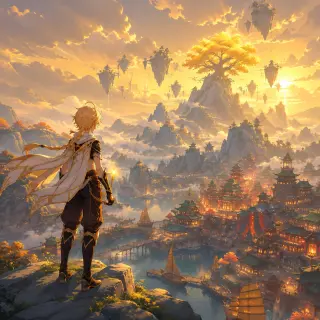
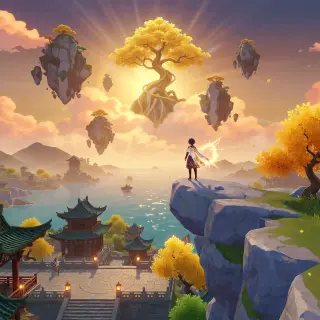
The key visual brief for the Seven Realms was: 'a lone Traveler with a glowing elemental Vision stands on a rocky cliff above Liyue Harbor at golden hour, seven floating islands and a radiant golden tree rising behind the clouds, cel-shaded 3D anime game render.' A specific scene beats a vague request: name the hero, the place, the light, and the one signature element.
Step 3 — Run the Model Comparison
Send the same brief to GPT Image 2 and Krea 2 in the same studio. GPT Image 2 delivers the clean cel-shaded 3D render with fine detail; Krea 2 returns a warmer, more expressive painterly pass. Compare, choose — or keep both and let the world carry two posters.
Step 4 — Generate Portraits and Backgrounds
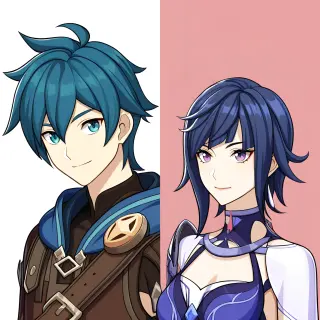
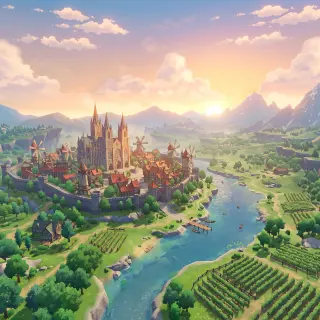
The key visual sets the palette; the portrait sheet proves the characters; the background establishes the place. For the Seven Realms, NoobXL drew a split-panel portrait sheet of two original Vision bearers, and Gemini 3.1 Flash Image painted a wide establishing shot of Mondstadt at sunrise.
Step 5 — Carry the Style Across the World
Every atom card can carry the same style: open the Traveler card and the location cards, check that the covers match the key visual palette, and re-queue any cover that drifts. The style sentence is the contract — every prompt reuses it, so the set stays coherent.
Pro move: fix the style sentence before generating covers — every cover, portrait, and background inherits it.
Step 6 — Publish and Fork
Every image work gets a shareable router-files URL the moment it renders. The world itself is public and forkable: anyone can inherit the 25 atoms and 12 covers, rewrite what they want, and run the same art pipeline on their own premise. That is the difference between an image and a world — an image ends; a world forks.
Prompt Cheat Sheet
Key visual: 'A <hero> above <location> at <time>, <signature elements>, <visual style>.'
Portrait: 'Two original <role> characters, split-panel portrait sheet, cel-shaded anime game splash art, <elemental glow>, no text.'
Background: 'A <nation>-style <landmark> at <time>, wide establishing shot, <visual style>, no text, no watermark.'
Style sentence: '3D anime game render, cel-shaded 3D' — reuse in every prompt.
Model Comparison Summary
GPT Image 2 — flagship key visuals: clean cel-shaded 3D renders, fine detail, strong prompt discipline. Choose it for final posters.
Krea 2 — fast, expressive painterly passes: iterate a brief, build mood boards, explore styles before committing.
NoobXL — anime-specialized portraits: cel-shaded character sheets from tag-based prompts.
Gemini 3.1 Flash Image — location backgrounds: wide establishing shots with strong scene understanding.
Troubleshooting
- The render looks generic — add a signature element (a floating island, a golden tree, a Vision glow) and name the exact time of day.
- Covers don't match the key visual — lock the style sentence before generating covers, then re-queue covers after editing atom facts.
- Text appears in the image — add 'no text, no watermark' and avoid asking for captions or logos.
- An image generation fails — resubmit once with a softened prompt; remove overly specific compositions.
FAQ
How long does an art set take? The Seven Realms set — one key visual, one portrait sheet, one background, plus 12 covers — was completed in a single studio session.
Do I need to code? No. The images, covers, and pages are all generated; you edit cards, not code.
Can I create Genshin Impact style art? Yes — canon-inspired art with original execution; no licensed assets are reproduced verbatim.
What if I only want one portrait? Use world-ops to add a single character atom to an existing world instead of rebuilding it.
Go Create Your Key Visual
Six steps, one world, and four image works — that is the GPT Image 2 Genshin Impact art pipeline. Liyue Harbor was drawn from one sentence; yours can be too.
Follow the six steps with GPT Image 2 — <span class="ml-highlight">your Genshin-style art set</span> is one sentence away
Lock the style, draft the brief, run the comparison, generate the set, publish, and fork.