
How to Use GPT Image 2 for Google Earth-Style World Key Visuals — A Step-by-Step Guide
A practical, step-by-step guide to generating satellite-map key visuals with GPT Image 2, using a real Neta Studio world — Ground Truth — and its four published works as the worked example.
How to Use GPT Image 2 for Google Earth-Style World Key Visuals
A practical, step-by-step guide to generating satellite-map key visuals with GPT Image 2, using a real Neta Studio world — Ground Truth — and its four published works as the worked example. Every image in this guide was produced with the workflow described here, from the same two prompts, and published as a work of that world.
What You Need
- A world seed — fork the Ground Truth world, or write a one-sentence brief about a map that renders places as they are remembered rather than as they are.
- GPT Image 2 — the detail-first model, for the hero render. Add Krea 2 if you want the comparison pair.
- One anomaly — a blanked tile, a missing year, a pin in open water. Decide this before you write the prompt.
- A scale — orbit, low aerial or straight down. One scale per image.
- Two minutes per iteration — GPT Image 2 is slow by design; budget for fewer, better renders rather than many quick ones.
Step 1 — Pick the Map, Not the Picture
Start from a place on the map, not from an image idea. The difference matters: “a cool satellite picture” gives the model nothing to render, while “the Atlantic between Lisbon and the Irish coast, with one town-sized blank in the shipping lanes” gives it a geography, a scale and a focal point in one sentence. In Ground Truth the six locations are already map-shaped — Meridian House on the zero meridian, Point Nemo at the oceanic pole of inaccessibility, the Atacama Node in the driest desert, the Paper Vault under Lisbon, the Serengeti Seam across a ninety-kilometre misstitch, and the Vatnajökull Strata inside an ice cap. Pick one and say where the camera is.
Step 2 — Write the World Sentence
Before the image prompt, write one sentence that states the rule the image is illustrating. For Ground Truth: “A place’s tile renders the version of itself the world collectively remembers, and reality follows the memory at the edges.” That sentence is not decoration — it tells you what the anomaly should look like. A map that renders memory does not have holes in the terrain; it has regions where the rendering stopped, with roads bending away from them. Your prompt inherits that logic, and the image becomes evidence rather than illustration.
Template: “[Place and region] seen [viewpoint], wrapped in a translucent cartographic overlay: a faint geometric tile grid following the curve of the continents, hairline survey seams crossing the water, glowing placemark pins above the cities, thin contour lines on the ranges. [One anomaly, with a shape and an edge.] [One small scale figure.] [Palette.] Photoreal satellite imagery blended with precise cartographic linework, cinematic wide establishing composition, no text, no labels, no watermark, no logo.”
Step 3 — Build the Overlay Lexicon
Models do not know what “map-like” means in your head. Give them a fixed vocabulary and reuse it every time, so that all the images in the world share a visual language. The lexicon below is the one Ground Truth uses; it appears almost verbatim in both published prompts.
- Tile grid — “a faint geometric tile grid following the curve of continents”. Never just “a grid”.
- Survey seams — “hairline seams crossing oceans”, for the places where two passes were stitched.
- Placemarks — “glowing placemark pins suspended above cities”, with a small shadow so they read as objects.
- Contours — “thin contour lines hugging the mountain ranges”, which is what makes land look surveyed.
- Erasure — “a pure unrendered white absence, edges dissolving, roads bending away from it and stopping”.
- Palette — “deep ocean blue, ash grey, pale map-cream, one hot brass pin light”. One warm light, always.
Step 4 — Set the Scale and the Camera
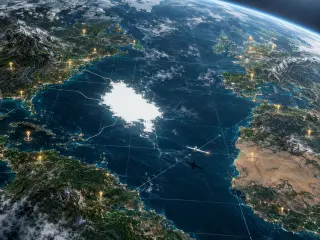
The single most common failure in map imagery is a camera with no altitude. If you do not say “high orbit at a steep angle”, you will get a flat graphic that looks like a screenshot of a map application. Say the viewpoint, then say what is in the foreground: a cloud deck, a wing, a satellite bus, a shipping lane. In the world cover the foreground is open Atlantic and a small survey plane crossing the lower right, which is enough to establish that the camera is above the weather. For an event frame, drop to a low aerial angle and let the horizon sit high — the same grid, seen almost edge-on, reads completely differently.
Step 5 — Give the Erasure a Shape
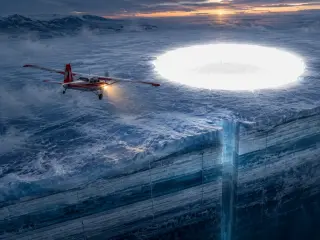
Erasure is the hardest thing to prompt because models are trained to fill space. “A hole” becomes a cloud, a lake or a lens flare. “A town-sized white absence shaped like a city block, its edges dissolving into unrendered white, roads bending away from it and stopping” becomes a deletion. Put it somewhere with no competing texture — open ocean, ice, desert — and describe its edge rather than its centre. The river-delta version of the same idea works because the surrounding texture is uniform enough that the white reads as missing data rather than as weather.
Step 6 — Run the Same Prompt Through Both Models
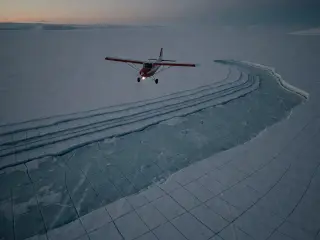
Run the identical prompt through GPT Image 2 and Krea 2. On Neta Studio both results publish as works of the world, so the comparison costs one extra render and gives you a permanent reference pair. Keep the prompt byte-identical: the moment you tune it per model, the comparison stops telling you anything about the models and starts telling you about your editing. This is the single most useful habit in the whole workflow, because it turns taste into evidence.
Step 7 — Compare at Two Sizes
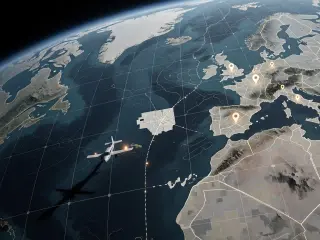
Compare the pair at full size and at 300 pixels wide. At full size, look for flat grids, melted coastlines, stray labels and an absence that has picked up texture. At thumbnail size, look for whether the anomaly still reads — if the white hole disappears when the image is small, it is not the anomaly you needed, or it is too close in value to the surrounding water. GPT Image 2 usually wins the full-size inspection; Krea 2 frequently wins the thumbnail. That is not a contradiction, it is a distribution decision: print and hero art go one way, feeds and avatars go the other.
Then check the frame for things you did not ask for: an extra aircraft, a pin in the wrong ocean, lettering that looks like an interface label. One stray element is enough to break the credibility of a map.
Step 8 — Publish as a Work of the World
Publish the render as a work of the world rather than keeping it as a loose file. A published work gets its own page, a share URL, and a permanent relationship to the world’s atoms; the next time you render the same setting, the earlier work is the reference. This is also how a world accumulates a visual canon: four published images with consistent grid, palette and anomaly teach both you and the model what this planet is supposed to look like.
Pick a place
A named location on the map, with a region and a camera altitude.
State the rule
One sentence describing what the map does to places. The anomaly follows from it.
Fix the lexicon
Tile grid, seams, pins, contours, erasure, palette. Same words every time.
Set viewpoint
High orbit at a steep angle, low aerial, or straight down. Name the foreground.
Shape the erasure
Give the blank an edge and a road behaviour. Put it on a uniform surface.
Render both models
Identical prompt, GPT Image 2 and Krea 2, no per-model tuning.
Compare twice
Full size for detail, 300 pixels for silhouette. Choose by destination, not taste.
Publish the pair
Two works, one world, a permanent reference for the next render.
Prompt Recipes That Work
Orbital world cover. “Earth seen from high orbit at a steep angle, the surface wrapped in a translucent cartographic overlay, a faint geometric tile grid following the curve of continents, hairline survey seams crossing oceans, glowing placemark pins above coastal cities, thin contour lines on the mountain ranges; in the Atlantic a town-sized white absence shaped like a city block, edges dissolving, roads bending away and stopping; a small survey aircraft low along the seam, one warm light on its wing; deep ocean blue, ash grey, map-cream, one brass pin light; photoreal satellite imagery with precise cartographic linework, no text, no labels, no watermark, no logo.”
Event frame. “A small red-and-white survey aircraft crossing an immense ice cap at dusk, low aerial angle; below it the glacier is layered like a stack of historical maps, bands of blue-white ice each a different year, a faint survey grid incised across them, a vertical shaft cut through the missing year; ahead the ice ends in a clean white hole with no horizon and no shadow, a faint town silhouette inside it; one warm landing light in a palette of ice blue, ash grey and bleached white; photoreal aerial cinematography, fine snow haze, no text, no labels, no watermark, no logo.”
Prop tile. “A straight-down satellite tile of a river delta, one erased city block rendered as pure white with a hard dissolving edge, hairline survey seams crossing the water, one warm pin light at the corner, map-cream and ash-grey palette, flat cartographic document, no text.”
Troubleshooting
- The grid looks pasted on. Add “registered to the curvature of the planet” and reduce the number of overlay elements to three.
- The white hole becomes a cloud. Move it to open ocean or ice, and describe the edge and the roads instead of the hole.
- Stray labels everywhere. Add “no text, no labels, no interface typography, no watermark, no logo” at the end, and remove any word that implies a UI.
- Too many pins. Say “pins above the largest coastal cities only” or give a number. Unbounded pins turn into confetti.
- The image reads as a screenshot. Add a foreground object at a different scale — an aircraft, a wingtip, a satellite bus — and raise the camera to orbit.
- Krea 2 drifts from the coastline. Expected. Use Krea 2 for mood and iteration, GPT Image 2 for geography you need to be accurate.
From Key Visual to Playable World
The four key visuals are public works of Ground Truth — covers, yes, but also the seed for everything else. From the same atoms you can generate a character cover for Iris Vale, a background set for the Paper Vault, a five-second loop of a tile going white along a motorway, a briefing document for Meridian House, or a playable scenario that starts with a plane crossing a seam at dusk. Because the grid, the palette and the anomaly are fixed by the world, all of it will look like the same planet. That is the difference between generating pictures and building a setting.
Frequently Asked Questions
- Is this about the real Google Earth? No. It is a guide to making original satellite-map-style key visuals with GPT Image 2, using the original world Ground Truth as the example. Not affiliated with Google.
- How many renders do I need? Two per brief — one GPT Image 2, one Krea 2. More than four iterations on a single prompt usually means the brief, not the model, needs rewriting.
- Can I use a reference image? Yes, GPT Image 2 accepts references. Use one for a coastline you need to be recognisable, and keep the overlay language in text.
- Why one warm light? Because a map is mostly cool values. A single warm pin or landing light gives the eye a target and makes the frame readable at thumbnail size.
- Can I sell the result? The world and its works are public and remixable on Neta Studio; check the platform terms for your intended commercial use.
Start Your Key Visual
Follow the Eight Steps
Fork Ground Truth, write one paragraph of prompt, run both models, and publish the pair as works of the world.