How to Use GPT Image 2 for Hollow Knight Key Visuals — A Step-by-Step Guide
A practical, step-by-step guide to generating painterly Hollow Knight-style key visuals with GPT Image 2, using a real Neta Studio world — Hollow Knight — and four published works as the worked example.
How to Use GPT Image 2 for Hollow Knight Key Visuals
A practical, step-by-step guide to generating painterly Hollow Knight-style key visuals with GPT Image 2, using a real Neta Studio world — Hollow Knight — as the worked example. By the end you will know how to choose a scene, cast a subject, control the light, run a fair two-model comparison, and publish the result as a work of the world.
What You Need
- A world seed — fork the Hollow Knight world or write a one-sentence brief about a kingdom sealed under a well.
- A scene — a character, a location, a faction, and a moment worth a frame.
- A palette — cold grey and indigo, bone white, one restrained amber, and infection orange only at a crack.
- Two models — GPT Image 2 for detail, Krea 2 for atmosphere and thumbnail clarity.
Step 1 — Choose the Scene
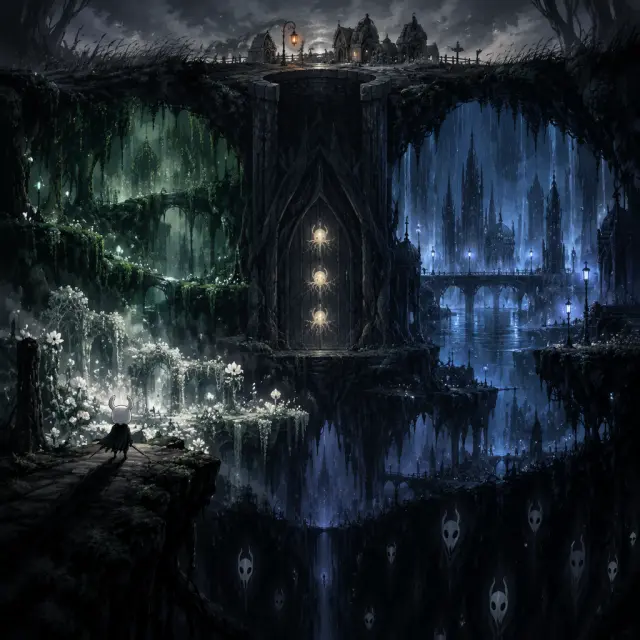
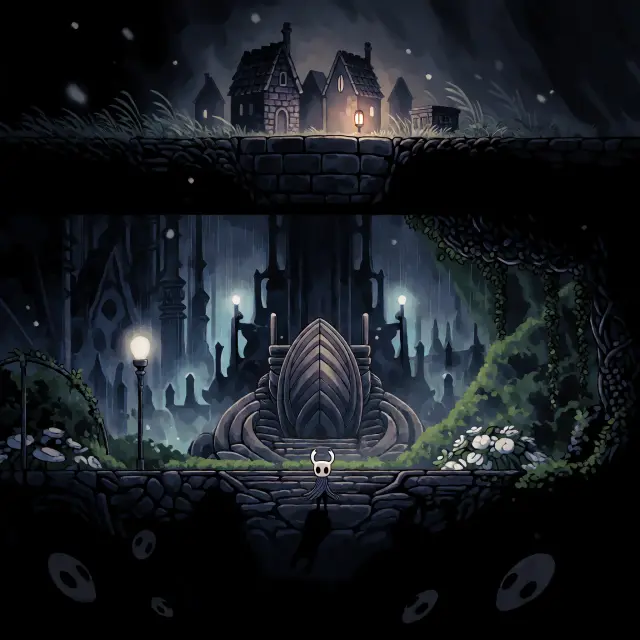
Start with a scene that has visual conflict. The world offers several: Dirtmouth at dusk with one lantern lit and the well black behind it, a vertical cross-section of the whole kingdom, the rain-drowned City of Tears seen from a bridge, the green roads of Greenpath, the sealed door of the Black Egg, or the Pale King at the threshold while the seal closes. Pick the one that can be understood without a caption.
Step 2 — Cast the Subject
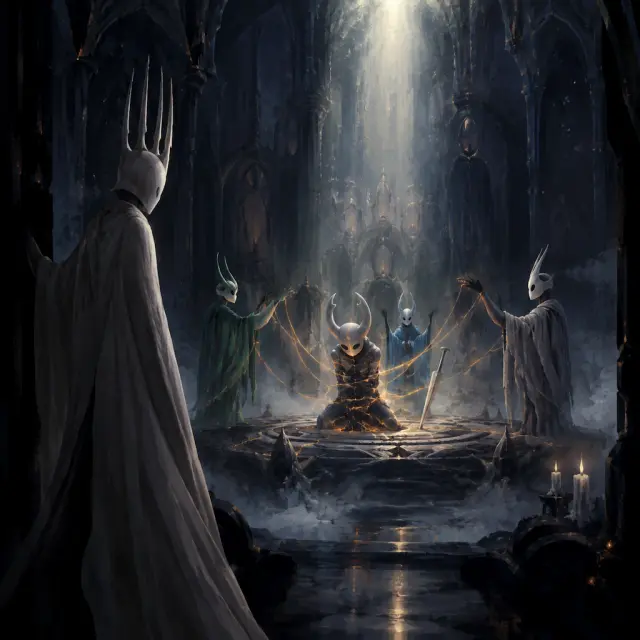
Name the character and their moment. The Knight on a ledge with its nail down is loneliness and scale. Hornet with her needle is guardianship. The Hollow Knight bound at the centre of the seal is the world’s whole argument in one figure. The Pale King at the door is guilt in a white robe. A key visual needs one subject with a readable silhouette, not a crowd.
Prompt template: “[a subject] in [a place], [a moment], [one light source], [palette], dark tenebrist painterly digital painting, visible brushwork, controlled hard and soft edges, epic scale, no text, no watermark.” Keep the template stable and change only the scene; that is how a set of covers starts to look like one world.
Step 3 — Set the Mood with Light
Light is the fastest way to make a buried kingdom read as key art. One warm lantern against cold grey makes the surface feel lived in. A single narrow shaft from above makes a temple feel sealed. Pale blue rain-light behind a spire makes the capital feel drowned. Infection orange is the most dangerous colour in the palette: a thin crack through a shell is a story, a wash of orange is a different game.
Step 4 — Run Both Models
Run the exact same prompt through GPT Image 2 and Krea 2. On Neta Studio both results publish as works of the same world, so the comparison is not a folder of files — it is two candidates for the same cover. Do not tweak the prompt between models on the first pass; the point is to see how each model reads the same brief.
Step 5 — Compare and Choose
Compare the pair against your art direction. Detail-first suits covers, title screens, and storefront capsules where the image will be seen large. Atmosphere-first suits thumbnails, social feeds, and any place where the frame has one second to read. If neither is right, the problem is usually the scene or the light, not the model — go back to Step 1 before adding more prompt.
Step 6 — Publish and Iterate
Every render publishes as a shareable work of the world. Iterate by re-prompting one variable at a time: the light, the figure, the distance, the palette. Keep the prompt template and the world seed fixed so that the differences you see are the differences you asked for.
Publish
Save the render as a work of the world so it has a shareable page and a fork point.
Compare
Put the GPT Image 2 and Krea 2 versions side by side at full size and at thumbnail size.
Change one thing
Re-prompt only the light, the subject, or the distance — never all three at once.
Fork
If the world itself needs to change, fork it and keep the first version intact.
Prompt Recipes That Work
- The well at dusk — “a lone round stone well in a windswept grey town square at dusk, one warm lantern in a stone house, a small pale horned knight with its back to us, long shadow toward the opening”.
- The vertical kingdom — “a single panoramic cross-section of a buried kingdom, lit town on top, rain-drowned capital with blue spires, green paths, sealed temple with three glowing seals, black abyss below, tiny knight on a ledge”.
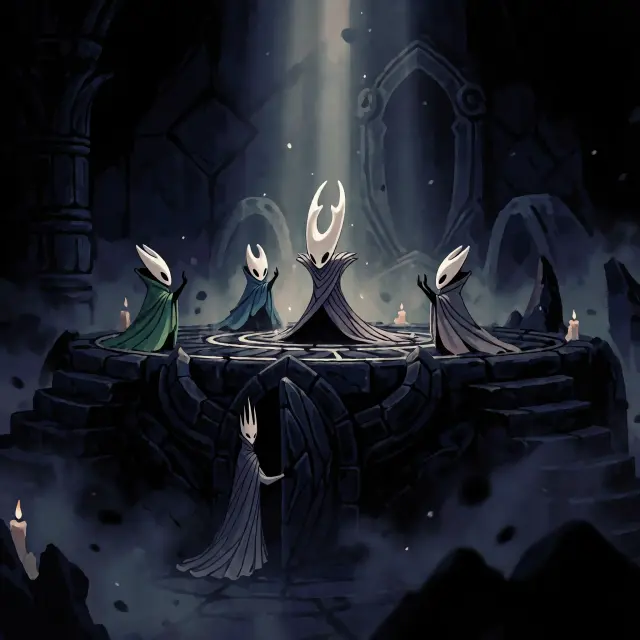
- The sealing — “a tall bound vessel kneeling at the centre of a circular seal in a dark temple, orange light bleeding through its shell, three masked figures raising chains of light, a white-robed king at the door”.
- The capital — “a rain-drowned gothic capital inside a cavern, blue lamplight behind falling water, a stone bridge, one small cloaked figure, cold indigo and bone white”.
Troubleshooting
- Too busy — remove landmarks, not detail: one temple, one light, one figure reads better than five of each.
- Too flat — add a single light direction and a foreground dark shape; tenebrism needs something to hide.
- Wrong mood — check the palette first, then the weather. Rain and cold grey do more than any adjective.
- Character drift — restate the silhouette (horns, cloak, nail) instead of the character’s name.
- Text artifacts — keep “no text, no watermark, no logo” at the end of every prompt.
Step 7 — Render the World’s Turning Point
Once the steps are second nature, stress-test them on an event: the Sealing of Hallownest. It is the hardest brief in the world because it needs five figures, one idea, and a single light source. Stage it as a scene first (the Vessel, the Dreamers, the King, the seal), then compare the GPT Image 2 and Krea 2 answers. If the event reads, your world key visual will too.
What’s Next After the Poster
The key visuals in this guide are public works of the Hollow Knight world — covers you can fork, remix, and build on. The next step is not another poster; it is the thing the poster promises: a playable scene, a location card, a short video, or a campaign set in the same kingdom. Because the world holds the atoms, every one of those starts from the same palette and cast.
Frequently Asked Questions
- Do I need a reference image? No. A clear scene, one light source, and a palette are enough for the first render.
- Should I use GPT Image 2 or Krea 2 first? Start with GPT Image 2 for the detailed frame, then run Krea 2 on the same prompt for the thumbnail version.
- How do I keep a series consistent? Keep the world seed and the prompt template fixed; change one variable per iteration.
- Can I publish the results? Yes — every render publishes as a work of the world, ready to fork and remix.
Start Your Key Visual
Follow the seven steps with GPT Image 2 — fork Hollow Knight, run the prompt, compare it with Krea 2, and publish the pair as works of the world. The lantern is already lit; the rest is one prompt away.
Start Creating
Follow the seven steps with GPT Image 2 — your painterly Hollow Knight key visual, published as a work of the world.