How to Use GPT Image 2 for Monster Hunter Key Visuals — A Step-by-Step Guide
A practical, step-by-step guide to generating painterly Monster Hunter-style key visuals with GPT Image 2, using a real Neta Studio world — The Ichorfall Marches — and four published works as the worked example.
How to Use GPT Image 2 for Monster Hunter Key Visuals
A practical, step-by-step guide to generating painterly Monster Hunter-style key visuals with GPT Image 2, using a real Neta Studio world — The Ichorfall Marches — as the worked example. By the end you will know how to choose a scene, cast a subject, control scale and light, run a fair two-model comparison, and publish the result as a work of the world.
What You Need
- A world seed — fork The Ichorfall Marches or write a one-sentence brief about a frontier that farms living titans for fuel.
- A scene — a character, a location, a faction, and a moment worth a frame.
- A palette — ash grey and bone, deep umber, one restrained amber-green.
- Two models — GPT Image 2 for detail, Krea 2 for atmosphere and thumbnail clarity.
Step 1 — Choose the Scene
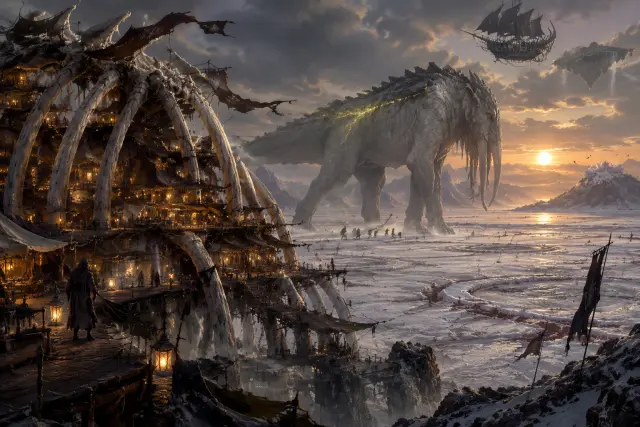
Start with a scene that has visual conflict. The world offers several: Harpoon’s Rest at dusk with its lamps burning inside a ribcage, a Giving on the flooded salt flat, Mother Ash crossing the ash valley with her hunters in her shadow, the bloom opening over a dead titan in Carrion Reach, the bone wall of the Quiet Line, or the black-market sky-dock above the clouds. Pick the one that can be understood without a caption.
Step 2 — Cast the Subject
Name the character and their moment. Ivo Kest with his brass hook is youth and nerve. Sable Orrun at the pins is authority and fatigue. Brannoch Tull with one hand on a titan’s jaw is the whole moral argument of the world in a single gesture. Mother Ash mid-circuit is scale and indifference. A key visual needs one subject with a readable silhouette, not a crowd.
Prompt template: “[a subject] in [a place], [a moment], [one light source], [palette], semi-realistic painterly digital painting, visible brushwork, controlled hard and soft edges, immense scale, no text, no watermark.” Keep the template stable and change only the scene; that is how a set of covers starts to look like one world.
Step 3 — Set Scale with Light
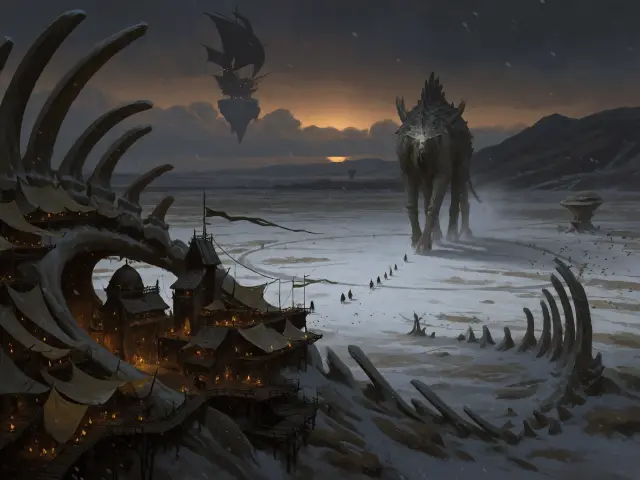
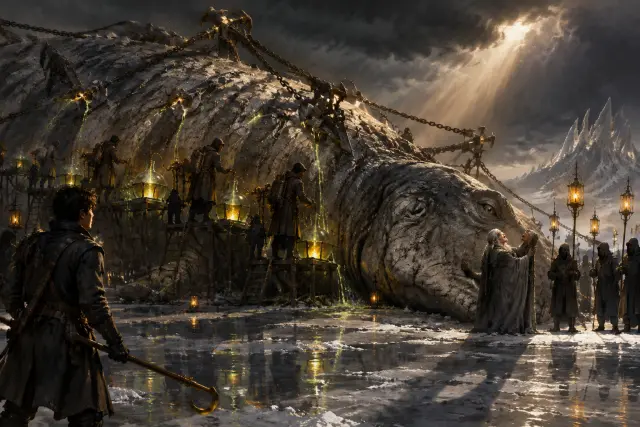
Light is the fastest way to make a titan read as enormous. A low bronze sun behind a god-beast turns it into a silhouette with a glowing rim. A single shaft of storm-light on a salt flat isolates the rite and leaves the rest of the frame in gloom. Hundreds of tiny amber lamps inside a ribcage make the city feel inhabited and the bone feel huge. And the amber-green of ichor is the one saturated colour in the palette: a thin thread of it is a story, a wash of it is a different genre.
Step 4 — Run Both Models
Run the exact same prompt through GPT Image 2 and Krea 2. On Neta Studio both results publish as works of the same world, so the comparison is not a folder of files — it is two candidates for the same cover. Do not tweak the prompt between models on the first pass; the point is to see how each model reads the same brief.
Step 5 — Compare and Choose
Compare the pair against your art direction. Detail-first suits covers, title screens, and storefront capsules where the image will be seen large. Atmosphere-first suits thumbnails, social feeds, and any place where the frame has one second to read. If neither is right, the problem is usually the scene or the light, not the model — go back to Step 1 before adding more prompt.
Step 6 — Publish and Iterate
Every render publishes as a shareable work of the world. Iterate by re-prompting one variable at a time: the light, the figure, the distance, the palette. Keep the prompt template and the world seed fixed so that the differences you see are the differences you asked for.
Publish
Save the render as a work of the world so it has a shareable page and a fork point.
Compare
Put the GPT Image 2 and Krea 2 versions side by side at full size and at thumbnail size.
Change one thing
Re-prompt only the light, the subject, or the distance — never all three at once.
Fork
If the world itself needs to change, fork it and keep the first version intact.
Prompt Recipes That Work
- The frontier at dusk — “a city built inside the bleached ribcage of a dead colossus, bone arches, canvas awnings, hundreds of amber ichor lamps, a colossal ash-grey god-beast walking a white salt flat beyond it, tiny hunters in its shadow, a black sky-ship above the clouds”.
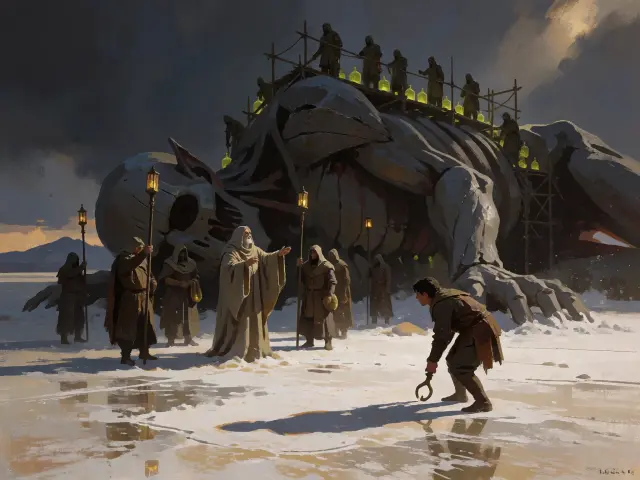
- The Giving — “a colossal titan pinned on its side on a flooded salt flat, taut chains and four harpoon-brakes, hunters on scaffolding drawing glowing green-gold ichor into glass carboys, a blind old singer at its jaw, a young brakeman with a brass hook”.
- The ribcage city — “a fortress-city inside a giant ribcage, iron walkways between vertebrae, lamp-lit windows, banners in the wind, ash falling like snow, one small figure on a high walkway”.
- The Quiet Line — “a wall of titan bones in the far north, a hundred dead colossi without wounds, pale fungus glowing in the ribs, one marshal in a long coat, cold dawn, no birds”.
Troubleshooting
- Too busy — remove landmarks, not detail: one titan, one crew, one light reads better than five of each.
- Too flat — add a single light direction and a foreground dark shape; tenebrism needs something to hide.
- Wrong scale — put a human figure at the titan’s foot and describe both heights explicitly.
- Character drift — restate the silhouette (hook, coat, lantern) instead of the character’s name.
- Text artifacts — keep “no text, no watermark, no logo” at the end of every prompt.
Step 7 — Render the World’s Turning Point
Once the steps are second nature, stress-test them on an event: the Giving. It is the hardest brief in the world because it needs a beast, a crew, a singer, a witness, and a single light source. Stage it as a scene first (the titan, the scaffolds, the carboys, the singer, the brakeman), then compare the GPT Image 2 and Krea 2 answers. If the event reads, your world key visual will too.
What’s Next After the Poster
The key visuals in this guide are public works of The Ichorfall Marches — covers you can fork, remix, and build on. The next step is not another poster; it is the thing the poster promises: a playable scene, a location card, a short video, or a campaign set on the same frontier. Because the world holds the atoms, every one of those starts from the same palette and cast.
Frequently Asked Questions
- Do I need a reference image? No. A clear scene, one light source, and a palette are enough for the first render.
- Should I use GPT Image 2 or Krea 2 first? Start with GPT Image 2 for the detailed frame, then run Krea 2 on the same prompt for the thumbnail version.
- How do I keep a series consistent? Keep the world seed and the prompt template fixed; change one variable per iteration.
- Can I publish the results? Yes — every render publishes as a work of the world, ready to fork and remix.
Start Your Key Visual
Follow the seven steps with GPT Image 2 — fork The Ichorfall Marches, run the prompt, compare it with Krea 2, and publish the pair as works of the world. The lamps are already lit; the rest is one prompt away.
Start Creating
Follow the seven steps with GPT Image 2 — your painterly titan-hunting key visual, published as a work of the world.