How to Use GPT Image 2 for Bendy-Style Cartoon Horror Art — A Step-by-Step Guide
A practical, step-by-step guide to generating 1930s rubber-hose cartoon horror key visuals with GPT Image 2, using a real Neta Studio world — Bendy and the Ink Machine — and its four published works as the worked example.
How to Use GPT Image 2 for Bendy-Style Cartoon Horror Art
A practical, step-by-step guide to generating 1930s rubber-hose cartoon horror key visuals with GPT Image 2, using a real Neta Studio world — Bendy and the Ink Machine — and its four published works as the worked example. Every image in this guide was produced with the workflow described here, from the same two prompts.
What You Need
- A world seed — fork the Bendy and the Ink Machine world, or write a one-sentence brief about a cartoon studio that built a machine to make its drawings real.
- A scene — a character, a location, a faction and a moment worth a frame.
- A palette — strictly black, bone cream and muted brick red, plus one sickly ink-green glow and one warm work-lamp.
- A style sentence — the 1930s rubber-hose anchor you will paste at the end of every prompt, unchanged.
- Two models — GPT Image 2 for detail, Krea 2 for speed and thumbnail clarity.
Step 1 — Choose the Scene
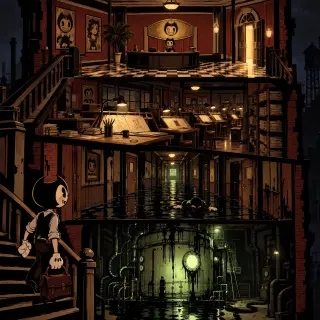
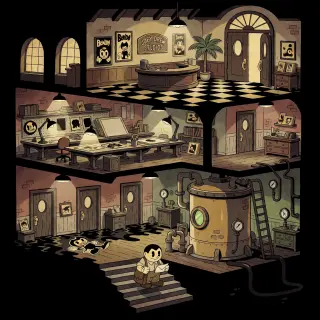
Start with a scene that has visual conflict built in. The world offers five: the lobby that still advertises cartoons nobody makes, the drafting floor at night, the flooded corridor with its water line, the tank room with the machine asleep, and the music department where something is still singing. Pick the one whose geometry already tells the story. A cutaway of the whole building is the hardest and the most useful — it forces you to decide what the studio actually is before you decorate it. GPT Image 2 will hold four stacked floors if you list them in order, top to bottom, and give each one its own lamp.
Step 2 — Cast the Subject
Name the character and the beat. Henry on the stairs with the letter is a beginning; Joey at the lever with his back to us is a decision; Bendy half-poured out of the porthole is the consequence. One figure per frame is usually right, and small is usually better than large — the building should look like it could keep them. If you use two figures, separate them by an architectural line: a railing, a hatch rim, a doorway.
Prompt template: “[scene and floor order], [one character] at [scale and position] doing [beat], [props that prove it is a working studio], [ink as a material], [one light source], [palette], 1930s rubber-hose cartoon illustration, bold fluid black outlines, pie-cut eyes, crescent mouths, noodle limbs, white gloves, flat vintage animation fills, no text, no watermark, no logo.”
Step 3 — Set the Mood with Light
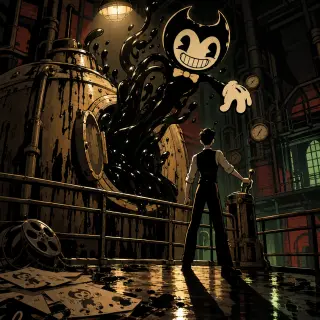
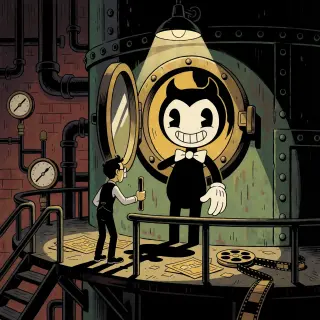
Light is the fastest way to turn a cartoon into a horror frame, and the cheapest: you do not need gore, you need one lamp that is too far away. Three rigs cover almost everything in this world. The work-lamp rig — one hot bulb above, everything else falling into black — is the tank room and the drafting floor. The open-door rig — one warm rectangle of light at the end of a corridor, spilling across a checkerboard floor — is the lobby and every escape you will not take. The porthole rig — one sickly green circle in a wall of iron, the only light in the frame — is the machine, and it is the one that reads best at thumbnail size because a single glowing disc survives any amount of downscaling.
Step 4 — Run Both Models
Run the exact same prompt through GPT Image 2 and Krea 2. On Neta Studio both results publish as works of the world, so the comparison costs you one extra render and gives you a permanent reference pair. Keep the prompt identical — the moment you tune it per model, the comparison stops telling you anything about the models and starts telling you about your editing.
Step 5 — Compare and Choose
Compare the pair against where the image will live, not against your taste. Detail-first suits covers, title screens and anything printed; Krea 2 suits avatars, social cards, banner crops and rapid exploration. Look at both at full size and at 300 pixels wide — rubber-hose linework should survive the downscale, and the model that keeps its silhouette smallest is usually the one to ship. Then check the frame for things you did not ask for: stray lettering, an extra figure, a prop that breaks the period.
Step 6 — Publish and Iterate
Every render publishes as a shareable work of the world, which gives you a permanent page for the image and a fork point for the setting. Iterate by changing exactly one variable: the light, the subject or the distance. Changing all three at once is how a series loses its palette.
Publish
Save the render as a work of the world so it has a share page and a fork point.
Pair
Put the GPT Image 2 and Krea 2 versions side by side at full size and at 300 pixels.
Change one thing
Re-prompt only the light, the subject or the distance — never all three at once.
Fork
If the world itself needs to change, fork it and keep the first version intact.
Prompt Recipes That Work
- The cutaway — “a single vertical cross-section of a 1930s animation studio, stacked like a cutaway dollhouse: lobby with a black-and-cream checkerboard floor on top, drafting tables and peg bars below, flooded corridor with ink ankle-deep, iron ink tank with a glowing green porthole at the bottom, one small figure with a satchel on the stairs”.
- The lobby — “a 1930s cartoon studio reception at night, curved wooden desk, two framed grinning devil posters, a potted palm, arched double doors standing open with warm light, checkerboard floor, one ceiling lamp, nobody there”.
- The corridor — “a flooded office corridor ankle-deep in glossy black ink, waterlogged doors, framed cartoon portraits, a flat cutout floating face-down, one ceiling lamp reflected twice, hard shadows”.
- The machine — “the instant the porthole swings open: a riveted iron tank, ink pouring out and up into the half-formed head of a grinning cartoon devil with two curved horns and pie-cut eyes, one solid white glove, a thin man in a waistcoat at the brass lever with his back to us, a fallen film reel on the wet floor”.
- The poster — “a 1929 cartoon studio poster layout: a grinning devil in a bow tie, a singing angel, a wolf, cream paper, black ink, brick-red border, flat vintage animation fills, no legible lettering”.
Troubleshooting
- Too busy — remove props, not detail. One tank, one lamp, one figure reads better than twelve gauges and a ladder. Cut the noun list by half before you touch the style sentence.
- Too cute — the material truth went missing. Add wet: “glossy ink on the floorboards”, “damp cream walls”, “one hard specular highlight”. Cute plus wet is horror; cute alone is a children’s book.
- Too realistic — the style sentence drifted to the middle of the prompt. Move it to the end and cut any word like “cinematic”, “photoreal” or “8K”.
- Muddy silhouette — you are lighting from two sides. Pick one source and delete the other.
- Text everywhere — remove signs and posters from the prompt, and add “no text, no lettering, no logo”. Models will invent signage to fill a flat wall; give them a palm or a pegboard instead.
Step 7 — Render the World’s Turning Point
Once the steps are second nature, stress-test them on an event rather than a room. The Machine Is Switched On is the hardest frame in this world: a tank, a torrent of ink, a half-formed cartoon devil and a human being, all in one composition. If your style sentence and your light rig are solid, the event will hold. If it collapses, the failure is almost always scale — the human is too big, the tank is too small, or the ink has no volume. Fix the scale first, then the light, then the props.
What’s Next After the Poster
The key visuals in this guide are public works of the Bendy world — covers, yes, but also the seed for everything else. From the same atoms you can generate a character cover for Alice, a background set for the flooded halls, a five-second loop of ink rising in the tank, or a playable scenario that starts at the lobby door. Because the palette and the props are fixed by the world, all of it will look like the same building.
Frequently Asked Questions
- Do I need a reference image? No. A clear scene, one light source and the style sentence are enough for the first render.
- Should I use GPT Image 2 or Krea 2 first? Krea 2 first while you are exploring, GPT Image 2 once you know the frame — or both at the same time if you already have the prompt.
- How do I keep a series consistent? Keep the world seed and the style sentence fixed, and change one variable per iteration.
- Why does my cartoon look photoreal? The style sentence is buried or contradicted. Put it last and remove cinematic or photoreal keywords.
- Can I publish the results? Yes — every render publishes as a work of the world, ready to fork and remix.
- Is this official Bendy art? No. It is an AI-generated fan-style world; the workflow describes shapes rather than reproducing official assets.
Start Your Key Visual
Follow the seven steps with GPT Image 2 — fork Bendy and the Ink Machine, write one paragraph of prompt, run both models, and publish the pair. The world ships with its 20 atoms, its rubber-hose palette and four published key visuals, so your first render already has a reference to match.
Create from This World
Follow the seven steps with GPT Image 2 — your rubber-hose cartoon horror key visual, published as a work of the world.