How to Use GPT Image 2 for Silent Hill Key Visuals — A Step-by-Step Guide
Six steps to fog-drowned horror key visuals with GPT Image 2 — scene briefs, light control, the GPT Image 2 vs Krea 2 comparison, and troubleshooting, proven on four real works from a public Silent Hill world.
What You Will Build
A publishable Silent Hill key visual in six steps: one character poster and one location establishing shot, run through GPT Image 2, with a Krea 2 counterpart for comparison. The whole exercise uses four published works from a real public world, so you can check every claim against the output.
You need: a world (fork the Silent Hill world or write your own one-sentence brief), one subject, one room, and one light source. That is the entire input. Everything else — the palette, the cast, the rules — comes from the world.
Step 1 — Choose Your Anchor
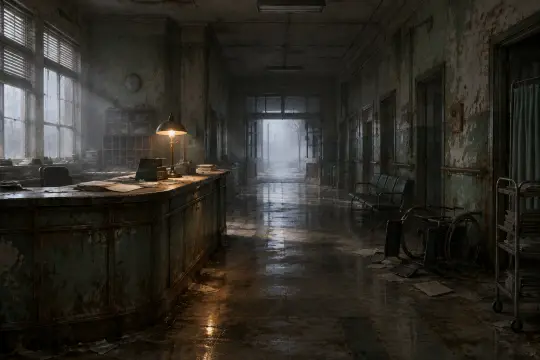
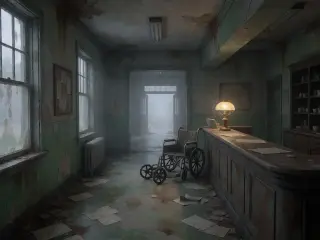
Start with a room, not a monster. A location forces you to solve composition, light and absence first; once the room works, dropping a figure into it is easy. For this guide the anchor is Brookhaven Hospital reception after the shift: a long counter, a brass desk lamp, paperwork, an overturned wheelchair, and a doorway filled with fog.
Step 2 — Write the Scene Brief
A usable brief has five parts: place, absence, light, palette and framing. Write them in that order and keep each one concrete. Vague mood words ("creepy", "dark") give the model nothing to resolve; specific nouns give it a room.
- Place — "an abandoned county hospital reception, long nurse's station, green tile, peeling paint".
- Absence — "no people, charts scattered, an overturned wheelchair".
- Light — "cold grey morning through fogged windows, one brass desk lamp still lit".
- Palette — "fog-grey mid-tones, oxidised green, rust accents, one warm amber highlight".
- Framing — "symmetrical one-point perspective, wide establishing shot, full-bleed".
Step 3 — Cast the Subject
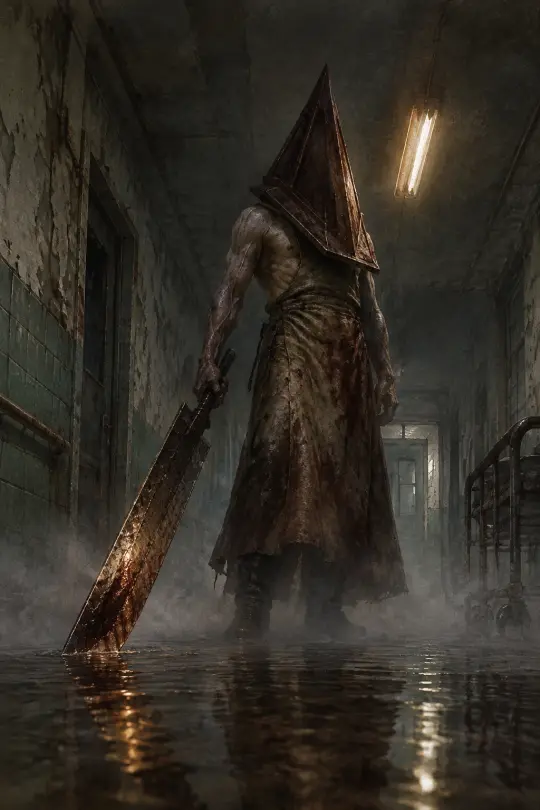
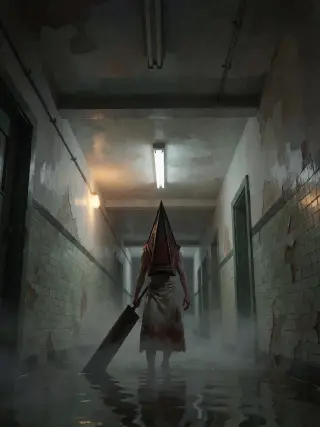
Now write the character brief as a staging problem. Where is he standing? What is he holding? What is the floor made of? For Pyramid Head the answers were: end of a flooded corridor, a greatsword held loose and dragging, standing water that mirrors the blade, one flickering fluorescent tube above. The helmet does the rest.
Step 4 — Control the Light
Horror art fails when everything is equally dark. Pick one warm source and let it be small relative to the frame: a desk lamp, a failing tube, a pyre. Desaturate everything else. Then decide what the light is doing — reflecting in water, catching dust, failing at the far end of the corridor. The light is the plot.
Step 5 — Run the Comparison
Send the exact same prompt to GPT Image 2 and Krea 2. Do not rewrite between runs — the point is to see how two models interpret one brief. GPT Image 2 will resolve texture and weight; Krea 2 will open the frame up and soften the light. Publish both. The pair is more useful than either image alone, because it documents a direction.
Step 6 — Publish and Iterate
Publish the frames as works of the world so they inherit the atoms and stay remixable. Then iterate on one variable at a time: change the light, keep the room; change the room, keep the figure. Three iterations with one variable each will teach you more than ten random re-rolls.
Lock the room
Keep the composition and palette fixed.
Change one thing
A light source, a prop, the camera height — never all three.
Re-run both models
Same prompt, both models, so the comparison stays honest.
Keep the pair
Publish the better frame and the comparison; both are content.
A Prompt Template You Can Reuse
Fill the brackets and keep the palette sentence untouched:
- Place — "[room], [one landmark detail], [one thing out of place]".
- Figure — "[subject] at [position], [what they are holding], [what the floor is doing]".
- Light — "[one warm source] against [cold desaturated field]".
- Style — "semi-realistic painterly horror, fog-grey mid-tones, oxidised green, rust accents, visible brushwork, fine film grain".
- Frame — "[low-angle vertical character poster] or [symmetrical one-point perspective establishing shot]", "no text, no watermark, no logo".
Troubleshooting
- Too dark / muddy — name the light source and its colour; ask for "one warm amber lamp, cold grey ambient".
- Over-textured skin — add "clean brushwork, semi-realistic painterly, no photo texture"; GPT Image 2 responds well to style cues.
- Wrong era — say "1970s American lakeside town" or "county hospital, institutional green tile" instead of "old hospital".
- Prompt refused — remove blood and injury words; use absence, fog, rust and an overturned object instead.
- Text artifacts — add "no text, no signage, no watermark"; Krea 2 should never be asked for legible lettering.
- Inconsistent world — repeat the same palette sentence and the same atom names in every prompt.
What Good Looks Like
A good frame survives a crop. The subject reads at thumbnail size, the light tells you where to look, the palette says which world you are in, and there is one detail you notice on the second viewing — the reflection, the paperwork, the fog where a street should be. If all four are true, you have a key visual, not just an image.
Workflow Notes
Keep a small prompt library: one palette sentence, one light rule, one framing rule per use. Reuse them across every page of the world. Publish in pairs so the comparison is visible. And resist the urge to rewrite the world between renders — consistency is the product, not a constraint.
Start Creating
Fork the Silent Hill world, keep the fog, and run your first pair. The world already contains 28 atoms and four published key visuals; your version starts from there.
Make Your First Silent Hill Key Visual
Six steps, two models, one world — and a comparison you can publish.