
Image to Sprite Sheet Converter — Free, No Upload
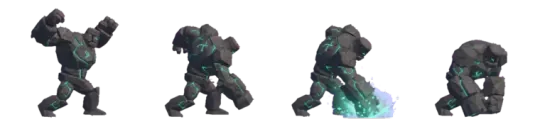


Make your own image to sprite sheet
Turn a sequence of PNG frames or a short video into one clean sprite sheet. Set columns, rows, cell size and background removal. Runs entirely in your browser.
An image to sprite sheet converter takes a sequence of PNG frames — or a short video — and packs them into one atlas you can hand to a game engine. On Neta Studio the conversion runs entirely in your browser: no upload queue, no server round-trip, no file leaves your machine. You drop a folder of numbered PNGs or a single MP4, set columns, rows, cell size and background removal, and export a sheet with a matching JSON manifest.
The parts that actually break are not the packing. They are ordering (frame_10 sorting before frame_2), padding (filters sampling the neighbouring cell and producing a fringe), and cell size (a sheet whose dimensions aren't divisible by the grid, so the last column gets clipped). This page covers each of those concretely, plus how to cut frames out of a video and how to check the result animating inside a real 3D world.
Drop images or a video
The first screen has one drop target and two branches. Drop a folder or a multi-select of PNG, WebP or JPG frames and the tool treats the input as an ordered image sequence. Drop a single video file — MP4, WebM or MOV that the browser can decode — and the tool switches to the extraction branch, where you pick a sample rate and it pulls frames with the WebCodecs path or a hidden video element as fallback.
Both branches land in the same editor: a grid of cells on the right, a settings column on the left, and a live preview that scrubs the sheet in place. Nothing is written to disk until you press export. Decoding happens on the main thread for stills and on a worker for video, so a 4K clip will keep the UI responsive but a 300-frame PNG sequence will briefly block painting while it decodes.
If the drop is rejected, the reason is almost always one of three: the video codec isn't decodable in your browser (common with HEVC in MOV), the images have mismatched dimensions, or the frame count exceeds the cell budget for the grid you set. The tool names the failing file rather than silently dropping it.
- PNG frame folderMulti-select or folder drop. Sorted with a natural-order comparator so frame_2 precedes frame_10 instead of sorting lexicographically.
- Short videoMP4, WebM or MOV. You choose frames-per-second to sample; the tool picks the decode path and reports how many frames it will extract before it starts.
- Live grid previewThe sheet re-renders as you change columns, rows, cell size or padding. Scrubbing the preview steps through cells in order.
- Background removalFlood-fill keying from the corner pixels with a tolerance slider, plus optional edge feather to avoid a hard 1px halo.
How to make a sprite sheet from PNG frames
Ordering is the first decision and the tool can get it wrong if your filenames are inconsistent. The default comparator splits each filename into text and numeric runs and compares those, so walk_0001.png … walk_0048.png lands in the correct order and so does walk_1.png … walk_48.png. If your frames are named by timestamp or by a UUID, sort order is arbitrary — rename first, or drag to reorder the thumbnail strip before packing.
Cross-check the frame count against what you expect from the animation. A 12-frame idle loop and a 24-frame walk cycle look identical in a thumbnail grid at small sizes. Open the preview, scrub to the last cell, and confirm it's the frame that should precede the first one coming back around — that's the frame where a loop usually looks broken.
Every frame must share the same width and height. The packer takes the dimensions of the first image and rejects any subsequent file that differs. If your exporter added a 1px border when cropping, or dumped a sprite at a different anchor, those frames are the outliers and they should be fixed at the source rather than padded here.
01
Drop the folder of PNGs onto the tool. Frames sort with natural numeric order; reorder by dragging if the sort is ambiguous.
02
Confirm the detected frame size in the Auto cell-size panel. Override it if your frames carry extra transparent margin you want trimmed.
03
Set columns and rows. A 48-frame walk becomes 8 columns × 6 rows, or 12 × 4 if your texture page wants a wider aspect.
04
Set padding. 2px is enough for bilinear filtering; use 4px if the engine will mipmap the atlas.
05
Choose the background handling: keep alpha, or key out a flat colour with the flood-fill tolerance slider.
06
Preview the scrub. Walk the cells in order and verify the last frame loops into the first.
07
Export as PNG plus a JSON manifest. The manifest records cell width, cell height, columns, rows, padding and frame names in sheet order.

Convert a video to a sprite sheet
Frame extraction from video has one number that determines whether the result is usable: the extract rate. Video is typically 24, 30 or 60 fps; sprite animation rarely needs that. A 30 fps clip sampled at 30 fps over three seconds produces 90 cells and a needlessly large atlas. Sampling the same clip at 12 fps produces 36 cells and, for most character motion, indistinguishable playback.
Pick the extract rate from the animation's intended playback rate, not the source. If the sprite will play at 12 fps in game, extract at 12 fps. If you plan to retime it, extract at 24 and drop every other cell in the engine — you keep the option, at the cost of a bigger sheet.
Cell size comes from the video dimensions after any scaling you apply. A 1920×1080 clip scaled to 480×270 gives 480×270 cells. Keep the source aspect ratio; a non-uniform scale distorts every frame and no padding setting will fix it. When the video is letterboxed, crop the bars before extraction rather than keying them out afterwards, because a moving subject can touch the bar colour.
01
Drop the video file. The tool reports duration, source fps and decodable dimensions.
02
Set the extract rate in frames per second. Start at the sprite's intended playback rate.
03
Set the output scale if you want smaller cells. Keep the width:height ratio unchanged.
04
Choose a time range. You often only want a two-second section of a longer clip.
05
Run extraction. The tool reports the exact frame count it will produce.
06
Set columns and rows so the grid holds the extracted count, then pad, key and export as above.
| Source | Extract rate | Duration | Cells |
|---|---|---|---|
| 30 fps clip | 30 fps | 2.0 s | 60 |
| 30 fps clip | 12 fps | 2.0 s | 24 |
| 60 fps clip | 12 fps | 1.5 s | 18 |
| 60 fps clip | 24 fps | 1.5 s | 36 |
PNG to sprite: transparency and padding
Keep the alpha channel. Most of the packing problems people report trace back to a converter that flattened RGBA to RGB on export, which turns every transparent pixel black or white depending on the canvas fill. On this tool the export canvas is created without an opaque background, so a keyed or pre-keyed PNG keeps its alpha through packing.
Padding exists because texture filtering samples outside the cell. At the edge of a sprite, a bilinear or trilinear filter reads the neighbouring cell's pixels and blends them in, producing a 1px fringe that changes colour with whatever sprite sits adjacent. A 2px transparent pad around each cell stops the filter from reaching outside. Pad values are written into the manifest, so the engine can offset the UVs by the padding when it reads the atlas.
Power-of-two sheet dimensions are no longer required by most engines, but they still help on hardware and in older pipelines that assume them. Set columns and rows so that (cell + 2 × padding) × columns and (cell + 2 × padding) × rows land on 256, 512, 1024, 2048 or 4096. If your grid doesn't divide evenly, the last row or column gets clipped or filled with empty space — the tool shows the final sheet dimensions live so you can see this before you export.
- Alpha preservedExport canvas is transparent by default. Your keyed PNGs stay keyed.
- Padding0, 2, 4 or 8 px transparent gutter per cell. Recorded in the manifest so UVs can be offset.
- Power-of-two hintThe dimensions readout flags when the sheet is close to 512, 1024, 2048 or 4096 so you can nudge columns or rows to hit it.
- Flood-fill keySamples the four corner pixels and removes pixels within a tolerance. Feather softens the 1px edge to avoid a halo.
Auto cell-size detection
The tool reads cell size from the source. For an image sequence it takes the dimensions of the first frame that decodes; for a video it takes the post-scale output dimensions. That value is prefilled in the Cell size field and used to compute the default grid, so a folder of 64×64 frames opens with 64×64 cells.
Override it when the transparent margin around your subject is larger than the subject. A sprite exported with generous padding will produce cells that are mostly empty, and the atlas is bigger than it needs to be. The trim setting finds the bounding box of non-transparent pixels across all frames and crops to the union — not per frame, because per-frame trimming makes the sprite jitter as it animates.
Override it the other way when frames are inconsistent. If the sequence mixes 64×64 and 66×66 because one export pass added an outline, cell-size detection locks to the first file and the rest are scaled or rejected. Fix the source. There's no cell size that makes mismatched frames correct.
| Source state | Detected cell | Action |
|---|---|---|
| Uniform 64×64 PNGs | 64×64 | Accept and pack |
| Uniform 128×128 with wide margin | 128×128 | Enable trim to crop to the union bbox |
| Mixed 64×64 and 66×66 | 64×64 from first file | Re-export the odd frames to 64×64 |
| 1920×1080 video scaled to 480×270 | 480×270 | Accept, pad 2px, set grid to divide 2048 |
See it animate in 3D
A sprite sheet is only correct if it plays. The Cyclops' Island is a playable world on Neta Studio that uses sprite-style characters, and it's the fastest way to check an atlas in motion — walk a character around, watch the loop point, see whether the padding fringes show when the camera pulls back and filtering kicks in.
If you'd rather build the test yourself, the 3D game builder lets you drop the exported PNG and its manifest into a scene and drive the UV offset from a timer. Set the frame time to the extract rate you chose and the animation runs at the speed you intended. If it looks wrong here, it will look wrong in your engine, and the cause is almost always the manifest's cell or padding value.
Mini World is the smaller sandbox if you just want a flat plane with the sheet on it and a camera you can orbit, which is often enough to spot a bad key at the sprite edge.
- The Cyclops' IslandPlayable world with animated characters. Load it and watch a sheet play in a real scene rather than a preview widget.
- 3D game builderDrop the sheet and manifest into a scene, drive UV offset on a timer, and verify frame timing matches your extract rate.
- Mini WorldA flat plane and an orbit camera. The quickest way to inspect edges, keys and padding at close range.
More free tools
The converter sits alongside three tools that share the same editor and export format. A sheet made in one opens in another without conversion.
GIF to sprite sheet takes an animated GIF and extracts its frames. GIF frame delays are per-frame, so the tool reads them and reports the sheet's effective playback rate rather than assuming a constant one. Sprite sheet to GIF runs the other direction: pick a time range over the cells and export an animated GIF at a chosen frame delay, useful for sharing a loop without shipping a PNG. The sprite animator takes a sheet and a manifest and plays it in a canvas with speed, direction and loop controls, so you can check frame timing before committing to an engine.
Each tool exports the same manifest shape. Cell width, cell height, columns, rows, padding and the ordered frame list — so a sheet that starts in the video extractor and ends in the animator carries the same numbers through.
- GIF to sprite sheetExtracts frames from an animated GIF and reads per-frame delays to report the effective playback rate.
- Sprite sheet to GIFExports a chosen range of cells as an animated GIF at a settable frame delay.
- Sprite animatorPlays a sheet and manifest in a canvas with speed, direction and loop controls for timing checks.
Walk into the world it belongs to
A sprite is a character with nowhere to stand. The last step is the one nobody else offers: take the sheet you just built and put it in a world someone can walk around in — a small island, a planet, a rainy street corner. Every world on this site was made from one written description and published as a page you can play.
Back to the 3D Game Builder
All 31 finished 3D worlds, games and scenes live on one page — every one of them playable.
Browse ready-made sprite sheets
Every asset in this library is a transparent, game-ready PNG with a recorded prompt — Sprite sheet resources and Free sprite sheets, tagged by action, style and subject. Free to browse and download.