
Voxel Circle Generator — Exact Blocks for Circles & Domes

Make your own voxel circle generator
Generate the roundest voxel/pixel circle for any diameter — then preview it as a rotatable 3D block sphere, dome or arch. Free, no login.
The voxel circle generator takes a diameter in blocks and returns the exact cells that make a round shape on a square grid. Enter 15 and you get 177 blocks. Enter 9 and you get 69. The output is a coordinate list, not an image, so you can paste it into a build, count it as a shopping list, or hand it to another builder. Free, no login, no export cap.
The same diameter also drives a 3D preview: the flat chart becomes a sphere, a dome or an arch, and you can rotate it before placing anything. Below is the algorithm, the exact block counts per diameter, the three outline styles, and the failure modes that show up under about 12 blocks across.
How the generator works
The generator samples the circle equation on a square grid and keeps the cells whose centres fall inside the radius. For a diameter D it builds a D-by-D grid, measures the distance from the grid centre to each cell centre, and fills the cell when dx*dx + dy*dy <= r*r, where r = D/2. That is the whole algorithm. The comparison is done on squared distances, so no square root is taken and no floating-point rounding can drift an edge cell by one.
D decides where the grid centre lands, and that is the only thing that changes between charts. With an odd diameter the centre sits on the middle of a block, so the offsets are whole numbers: -7 through 7 for D=15. With an even diameter the centre sits on the shared corner of four blocks, so the offsets are half numbers: plus or minus 0.5, 1.5 and so on for D=8. Two charts of nearly the same size therefore share almost no coordinates, and you cannot turn a 15 chart into a 16 chart by adding a row.
Nothing in the rule is random. Every diameter produces one fixed, reproducible chart: D=15 is always 177 cells, D=9 is always 69. You can paste the list into a bug report, reuse it in a second world, or come back to it next month, and the coordinates will match.
There is no boundary tie to argue about
A common worry is cells whose centre distance equals the radius exactly, and whether to keep them with <= or drop them with a strict <. If you do the arithmetic, it never happens. With an odd diameter the offsets are whole numbers and r*r ends in .25, so an integer sum can never equal it. With an even diameter both offsets are half numbers, so each square ends in .25 and the sum ends in .5, while r*r is a whole number.
The two sides cannot be equal at any diameter, which means <= and < return the same chart and a whole class of off-by-one bug reports disappears. The real edge case is elsewhere: D=3 returns all nine cells of its 3-by-3 grid, corners included, because the corner centres sit about 1.414 from the middle and the radius is 1.5. D=3 is a square. The first diameter that removes a corner is D=5.
Circle → Sphere → Dome → Arch
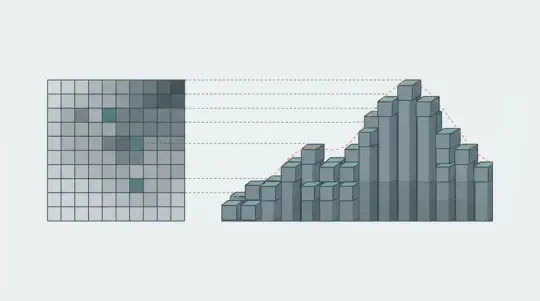
The 2D chart is the equator slice, and it is also the footprint. To get a sphere, run the same test in three dimensions: for each layer, the slice radius is the square root of (r*r - h*h), where h is the distance from the sphere centre to the middle of that layer. A diameter-15 sphere is 15 layers. The middle layer is the 177-cell disc. The top and bottom layers are 21 cells each, a 5-by-5 footprint, because the layer centre sits half a block below the top of the sphere.
A dome is that stack cut at a horizontal plane. Choose the spring line, the layer where the wall stops being vertical, and keep only the layers above it. Cutting a diameter-15 sphere at the equator gives a dome 8 layers tall. Keeping only the top 5 layers gives a shallow cap whose base ring is the 13-block circle, so the cap sits on a 13-wide wall rather than a 15-wide one.
An arch is a slab, not a stack. Take the ring outline instead of the filled disc, extrude it straight along one axis for the thickness you want, then delete everything below the spring line. A 15-wide arch, 3 blocks thick, with the bottom four rows of the ring removed, stands 11 blocks tall. The chart gives you the width and the ring; the thickness and the spring height are separate inputs you set.
This is the difference from a flat chart. A pixel circle chart gives a footprint and stops. It cannot tell you whether the silhouette closes into a single block at the top or flattens into a ledge, and it cannot show that a dome and an arch of the same diameter need different amounts of material. Rotating the 3D preview is how you catch that before a block is placed.
- CircleOne disc on a D-by-D grid, cell centres inside r. It is the footprint and the equator of everything else.
- SphereThe same test run once per layer, with slice radius sqrt(r*r - h*h). D layers tall, D blocks wide at the equator.
- DomeA sphere truncated at a chosen spring line. Half a sphere is the common case; shallow caps need a wider base ring.
- ArchAn outline ring extruded along one axis, then cut below the spring line. Thickness and height are independent inputs.
Block count & materials
A filled disc costs exactly the cells inside it. The table is the generator's output, not an estimate: one grid cell equals one block, every time.
Reading the count as a shopping list
At D=15 a filled disc is 177 blocks, which is two stacks of 64 plus 49 in a Minecraft-style inventory. D=16 lands on exactly three stacks, which is one reason even diameters are convenient when you are hauling material. If you only need the ring, D=15 drops to 40 cells: the filled disc costs more than four times as much material for the same silhouette.
Material choice moves the number more than the diameter does. A solid disc reads flat from ground level, so most builds use one block for the fill and a second for the 40-cell outline, which means the visible cost is the outline and the fill is whatever you have spare. A 3-block-thick layer triples the outline count. A hollow tower base uses the outline only and leaves the interior empty, and that interior is what you pay for when you build solid.
| Diameter (blocks) | Radius | Filled blocks | In stacks of 64 |
|---|---|---|---|
| 3 | 1.5 | 9 | - |
| 5 | 2.5 | 21 | - |
| 7 | 3.5 | 37 | - |
| 8 | 4 | 52 | - |
| 9 | 4.5 | 69 | 1 stack + 5 |
| 11 | 5.5 | 97 | 1 stack + 33 |
| 15 | 7.5 | 177 | 2 stacks + 49 |
| 16 | 8 | 192 | 3 stacks |
The three outline styles
The style controls how thick the stroke is and where it sits on the grid. It does not change the fill count. Pick the style before you place anything, because switching later moves every cell on the axes.
Even thickness
Used with even diameters: 4, 8, 16, 32. The centre of the shape falls on the corner where four blocks meet, so the outline is symmetric across both axes but the stroke is an even number of blocks wide at the top, bottom, left and right. Even charts scale cleanly — double the diameter and the proportions hold — which is why large builds tend to land on them.
Odd thickness
Used with odd diameters: 3, 5, 9, 15, 31. The centre falls on a block, so there is a single middle column and a single middle row, and the shape is symmetric about them. Odd charts are the ones that read as circles at small sizes, because the middle block gives your eye a fixed centre to judge the curve against.
Flattened side
The flattened variant keeps the parity but replaces the single extreme cell at each of the four cardinal points with a flat run. At D=9 the default odd chart puts one block at the far left. The flattened variant makes that leftmost column 3 blocks tall, so the silhouette reads as a rounded square. Use it when the circle has to meet a straight wall, a door frame or a rail line, where a flat seam lines up and a single point does not.
01
Below about 12 blocks across, style matters more than diameter. D=3 is a square, D=5 is a square with its corners cut, and D=7 is the smallest chart that reads as round.
02
For a well, a tower base, a fountain or a tree pit at that scale, use an odd diameter of 9 or 11 with the odd-thickness style.
03
Reserve the flattened-side variant for anything that has to butt against a straight edge, and check that edge in the 3D preview before placing blocks.
Build it in a voxel world
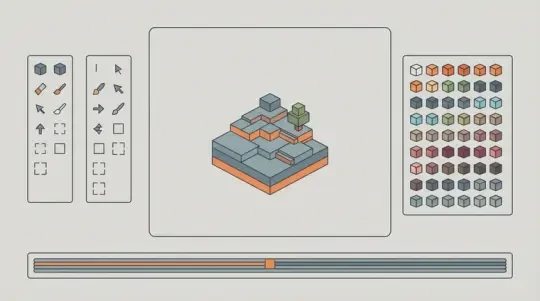
A chart is only useful once it is standing. The 3D game builder takes a coordinate list as a placement pattern, so the same numbers that produced the preview produce the blocks in a world you can walk around. You do not need to re-derive the curve by hand in the editor or eyeball the diagonals.
The preview is where you catch what a flat chart hides: a one-block notch in a ring, a dome slice that flips parity near the top and leaves a ledge, a diagonal staircase a player cannot climb. Those cost seconds to fix on screen and a lot more after a hundred blocks are down. Mini World and The Cyclops' Island were both built this way — flat plan first, then raised, then walked.
If you want the circle as a flat sprite instead of a block shape — a coin, a ring counter, a UI badge — Agent Sprite Forge takes the same radius and keeps the pixel version consistent with the block version, so the two do not drift apart.
01
Pick the diameter and the outline style, then copy the coordinate list. Keep the numbers; you will want the same chart for every slice.
02
Open a new world in the 3D game builder and set the ground grid to your diameter or a multiple of it, so the footprint snaps without half-block drift.
03
Place the outline cells first, then fill inward. Outline-first exposes a wrong coordinate immediately; fill-first hides it until you close the ring.
04
Raise the shape. Extrude the outline straight up for a wall or a tower, or swap in the per-layer slice diameters for a dome or a sphere.
05
Check the silhouette from ground level before adding a second material. From directly above, every circle looks correct.
06
Enter play mode and walk the perimeter. Collision catches you on a diagonal staircase if the ring is one block thick with nothing behind it.
Walk into the world it belongs to
A sprite is a character with nowhere to stand. The last step is the one nobody else offers: take the sheet you just built and put it in a world someone can walk around in — a small island, a planet, a rainy street corner. Every world on this site was made from one written description and published as a page you can play.
FAQ
Is the voxel circle generator free to use? +
Yes. There is no login, no export limit and no watermark on the coordinate list. The output is plain text, so nothing about it is gated behind an account.
Do I get an exact 1:1 block chart? +
Yes. One grid cell is one block at every diameter: a 15-block circle returns 177 cells and you place 177 blocks. There is no scaling pass and no rounding step between the chart and the build.
Can it generate spheres and domes, or only flat circles? +
Both, from the same diameter. The sphere runs the radius test on every layer with sqrt(r*r - h*h) as the slice radius, and a dome is that sphere truncated at a spring line you choose.
Should I use an odd or an even diameter? +
Odd, for anything under about 16 blocks. Odd diameters place a block at the centre, so the shape is symmetric about a middle row and column. Even diameters put the centre on a corner and pinch visibly at the four cardinal points.
What exactly is a voxel? +
A voxel is one cell in a 3D grid — a cube of a fixed size. In these charts one voxel is one block, which is why the cell counts double as material counts.
Can I use the chart for Minecraft-style builds? +
Yes. Treat each cell as one block. The chart works as a footprint, a wall, a tower base, a fountain rim or a dome layer, and the cell count carries across as a material list.
Back to the 3D Game Builder
All 31 finished 3D worlds, games and scenes live on one page — every one of them playable.