Pixelorama Alternative — Draw Sprites in the Browser, Generate Them When You’d Rather Not
Make your own pixelorama alternative
A free browser pixel-art workspace: draw and animate sprites by hand, or describe one and generate it, then drop the result into a 3D world you can walk through. No download, no account to try.
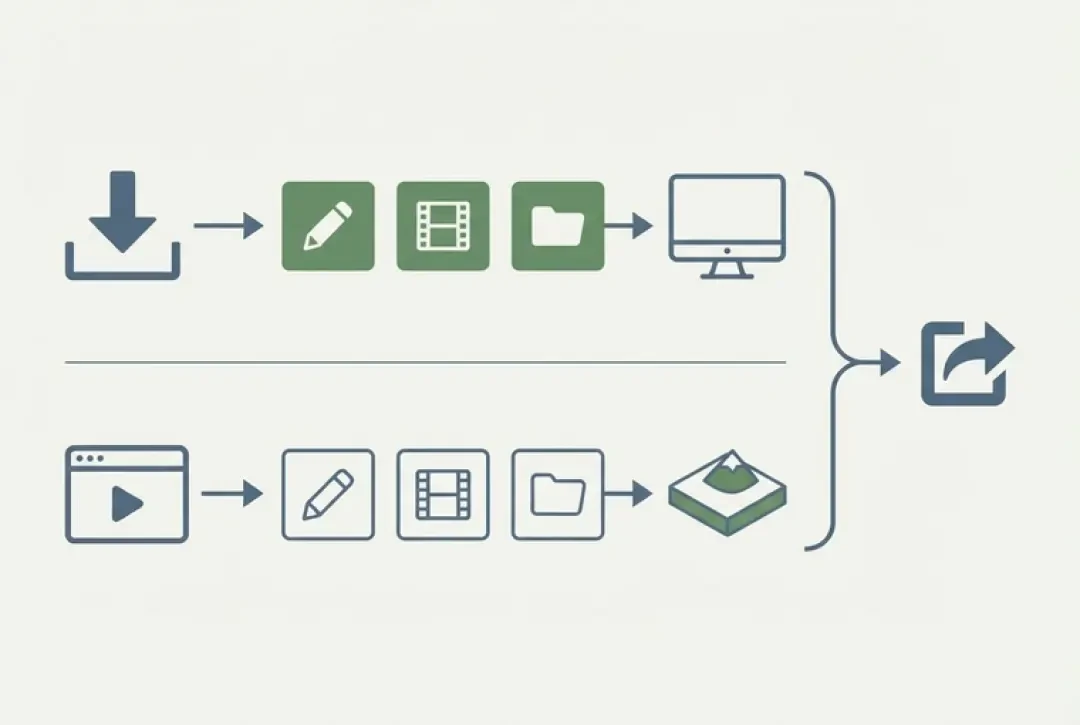
If you are looking for a Pixelorama alternative, the reason is usually one of three: the machine is a Chromebook, the install is blocked by policy, or you need a sprite finished before you have time to draw one. Pixelorama is a free, open-source, desktop pixel-art editor with animation, layers and a tilemap tool, and it is good at all three. This page is about the browser workspace that covers the drawing, adds a describe-to-generate path, and then does the thing Pixelorama cannot: puts the sprite inside a 3D scene you can walk through.
Agent Sprite Forge is the sprite editor. You type a noun phrase, pick a facing direction, and get a sheet; or you take a one-pixel pencil and draw the frames yourself at 16×16, 32×32 or whatever the project uses. Export is a plain PNG, single frame or strip. From there the 3D game builder takes that PNG as a material on a plane or a billboard inside Mini World, The Cyclops' Island, or a scene generated from a paragraph. No download, and no account to try.
What Pixelorama Is, and What It Isn’t
Pixelorama is a free, open-source pixel-art editor that runs on the desktop. It is built on the Godot engine, it opens as an ordinary application window, and it covers the parts of sprite work that actually consume time: a layer stack with opacity and blend modes, an animation timeline with frame tags and onion skinning, a palette panel that imports existing palette files, and a tilemap tool for building tilesets that snap together without seams. For a lot of people it is the honest answer to 'Aseprite costs money and I am not paying for it yet.'
It is also a drawing program in the strict sense. Every pixel in a project file is there because a hand moved a cursor. There is no path from a written sentence to a sprite, no batch operation that produces forty idle variations, and no renderer. What leaves the program is a PNG, a packed sheet, or a GIF — a rectangle of pixels with no camera, no ground and no light.
That distinction matters when you scope a project. A drawing tool answers 'what should this character look like'. It does not answer 'where does this character stand'. The second question needs a scene, a camera, a ground plane and a lighting decision, and Pixelorama deliberately has none of them. Hold that boundary in mind for the rest of this page, because it is where the two tools stop overlapping.
Where Pixelorama Stops
Stop one: it is desktop software. There are builds for Windows, macOS and Linux, and that is the whole list. A Chromebook cannot install it. A studio or school machine with an application allowlist cannot install it. A locked work laptop that will not run an unsigned binary cannot install it. If the computer you have for the next twenty minutes is a browser tab, Pixelorama is not available to you regardless of how good it is.
Stop two: every pixel comes from your hand. A 32×32 character with a four-frame walk is roughly four thousand pixels of decisions. A practised pixel artist finishes that in 30 to 60 minutes. Someone who has not done it before takes hours, and most of those hours go into the silhouette — the read at small size — not into shading or colour. Generating a draft does not remove the skill. It moves the skill to selection and correction, which is a much shorter loop.
Stop three: the output is an image with nowhere to stand. A PNG of a knight is not a knight in a scene. Getting from one to the other requires an engine, an import step, a material, a scale decision and a camera. That is not a criticism of Pixelorama; it is the correct scope for an editor. But when the deliverable this week is 'a street I can walk down', a 2D editor is one step out of five.
None of that is a knock on the software. The tilemap tool is genuinely good — grid-based tiles, collision shapes you author per tile, a tileset workflow that survives export. The tagged animation timeline is why animators stay. It has a following because the core is solid, not because it is free.
Pixelorama vs a Browser Sprite Tool, Side by Side
The table compares the two on the things that decide a project, not on feature counts. Read the rows where Pixelorama wins as real losses for the browser tool, because that is what they are.
The two rows that decide most projects
Scripting is the gap that will annoy anyone with a pipeline. If your workflow involves renaming every frame, padding the sheet to a fixed grid, or emitting a JSON atlas beside the PNG, Pixelorama can be extended to do that work and the browser tool cannot. It is a UI, not a library.
Exact palette control is the other one. Pixelorama lets you lock an indexed palette and audit every colour against it. Generation returns colours you did not choose, and you either snap them back to the project palette by hand or you accept drift across the sheet. For a single character that is ten minutes of work. For a forty-sprite tileset it is the whole afternoon.
| Capability | Pixelorama | Browser sprite tool (Agent Sprite Forge) |
|---|---|---|
| Install | Desktop download per OS; you run updates yourself | None — opens in a tab |
| Offline | Full editing with no connection | Requires a live connection; no offline editing |
| Cost | Free and open source | Free to use in the browser |
| Drawing | Pencil, eraser, fill, line, rectangle, selection, layers, blend modes | Pencil, eraser, fill, line, selection, layers — a smaller set covering the same basics |
| Generation | None; every pixel is authored | A noun phrase plus a direction produces a draft sheet |
| Animation | Timeline, frame tags, onion skinning, playback speed | Fixed-size frames in a strip, ordered playback, no onion-skin tuning |
| Export formats | PNG, packed spritesheet, GIF, project file | PNG, single frame or horizontal strip |
| 2D to 3D | None; the pipeline ends at the image | The PNG becomes a material on a plane or billboard in a walkable scene |
| Scripting and plugins | Script extensions and a real extension path | No scripting API and no plugin system |
| Licence | Source available under a permissive open-source licence, so you can fork it | Hosted software you use in a browser; you do not receive the source |
Try the Browser Editor Here
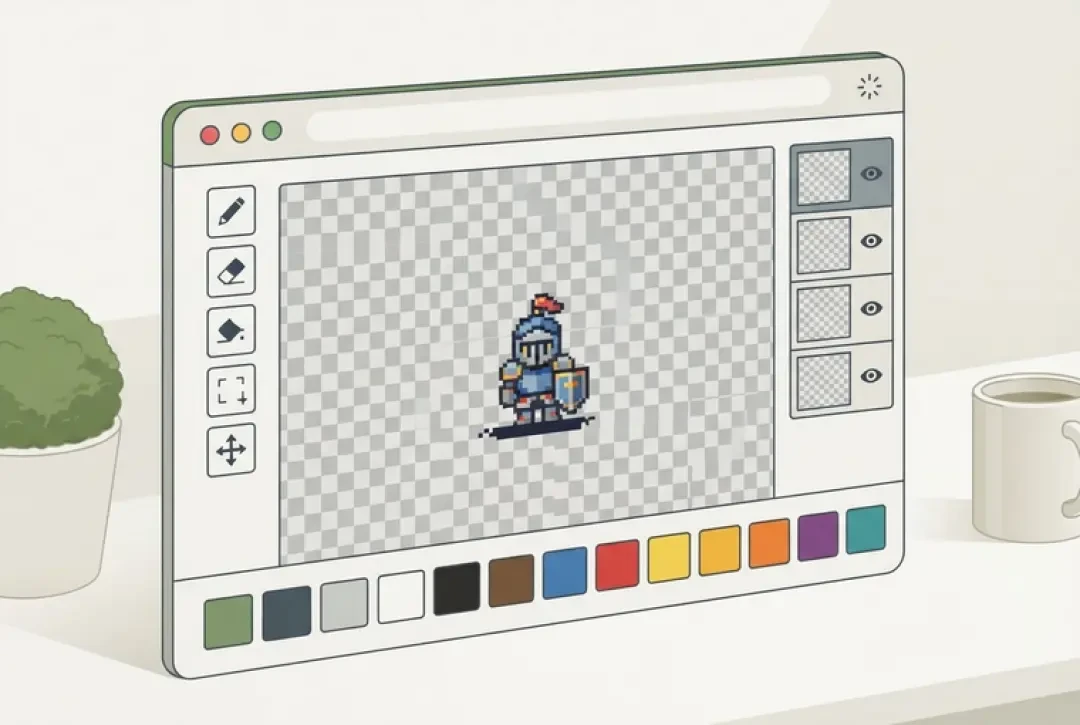
Agent Sprite Forge opens with a canvas, a pencil, an eraser, a fill, a line tool, a layer panel, a frame strip and a generation field. There is nothing to install and no account needed to start drawing.
The fastest route to something usable runs through the generation field, and the phrasing matters. Type a noun phrase, not a sentence: 'armoured knight with a spear' returns a more coherent sprite than 'a knight who is standing in a forest looking brave'. Pick a facing direction afterwards. Direction is not cosmetic — a top-down or three-quarter game needs four of them, and each one is a separate sheet with its own silhouette.
01
Open Agent Sprite Forge in a browser tab.
02
Type a noun phrase into the generation field: two to six words, one subject, one piece of gear.
03
Pick a direction — down, up, left or right — before generating, so you get the facing you actually need.
04
Read the result at 1× zoom first. If the silhouette does not read at native size, it will not read in a game either.
05
Clean up with the pencil: thicken a thin outline, remove stray single pixels on the edge, snap off-palette colours to the nearest colour you already used.
06
Export a single frame as a PNG, or export the strip as one horizontal PNG.
07
Write down the frame size and frame count before you close the tab. The engine will ask for both.
Drawing vs Describing: Two Ways to Get One Sprite
Drawing and describing are not competing methods. They fail in different directions, which is why the useful workflow puts one on top of the other's weakness.
Drawing gives you palette discipline and a silhouette you decided on rather than one you accepted. If you declare that the character is five colours plus transparent, you enforce five colours, and every sprite in the project stays coherent because they all obey the same constraint. The cost is time, and the ceiling is your hand on the day.
Generating gives you a first draft in seconds and, more usefully, a spread. Run the same noun phrase with a different seed and you get variations that differ in proportion and gear — broader shoulders, a helmet instead of a hood, a heavier weapon. Choosing from forty is faster than drawing one, and it teaches you what the character actually is. The cost is inconsistency: across four generated frames the same character can drift two pixels in height and wander in palette.
A Pixelorama alternative workflow: generate the sheet, correct by hand
Generate the sheet first, then play it at the target speed and find the frames that read badly at small size. In a four-frame strip that is usually two frames. Redraw those two and leave the rest: match the height of the neighbouring frames, sample an existing colour instead of picking a new one, and fix the feet so the character does not slide or hover. That is fifteen minutes instead of two hours, and the result is a sprite you have actually looked at.
Frames, Strips and Sheets
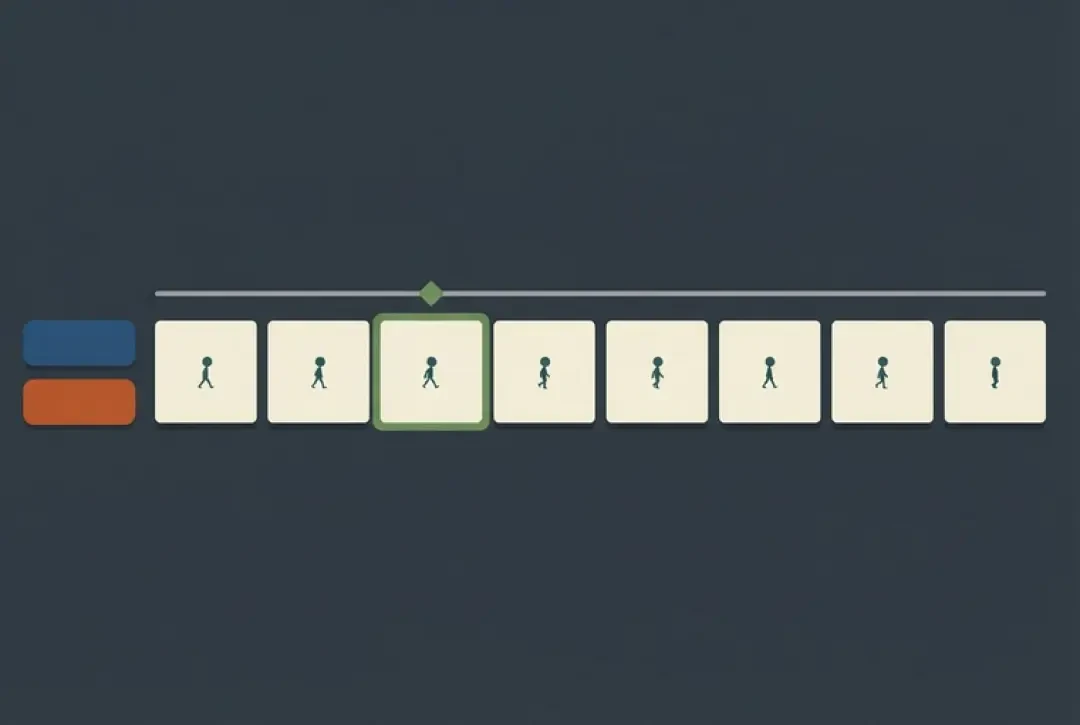
Animation formats that survive contact with an engine obey the same four rules. Fixed frame size: every frame is exactly the same width and height, even when the character only occupies the middle. Frames in one row: a horizontal strip, left to right, no packing, no trimming, no clever layout that an importer will misread. A loop whose last frame meets its first: frame four is followed by frame one with no duplicate in between, so the frame-four pose must be one step before the frame-one pose, not the same pose. A documented frame count: four, six or eight, written next to the file, because an undocumented strip is a guessing game for whoever imports it.
Why a four-frame walk reads as a walk while a four-frame idle reads as a jitter: a walk cycle has four large silhouette changes — contact, passing, opposite contact, opposite passing — and the eye accepts four samples of a big motion. Idle has almost no silhouette change, so four frames means the only differences are one-pixel shoulder shifts, which the eye reads as noise. Idle wants two frames, or six to eight with a real secondary motion such as a breathing chest or a swaying cloth edge. Do not use four for both because it looks symmetric in the settings panel.
A 16-pixel-tall character has about fourteen usable pixels once the outline is drawn. That is enough for facing direction, head shape, one held item, a helmet, and leg position. It is not enough for facial expression, fingers, cloth folds, or a weapon that must be identified by type rather than pointed at. Budget before you draw — head 5, torso 6, legs 5 — and accept that the face is two dark pixels and nothing more. At 32 pixels tall you get a mouth, a belt and a two-tone weapon. At 64 you are drawing rather than suggesting, and a four-frame walk starts to look stiff because the added detail demands more samples of the motion.
From Sprite to a Walkable Street
This is the step a 2D editor does not take. In the 3D game builder, a PNG is a texture. You place a plane, assign the sprite, set the material to unlit or lightly lit, and the character occupies the same coordinate space as the street, the walls and the camera. The Cyclops' Island is the demo to look at: pixel characters, low-poly island, a camera you steer. Mini World does the same thing at a smaller scale, and an Opus pixel-art scene shows the opposite arrangement, where the environment itself is pixel-limited and the sprites are the only sharp edges in frame.
Two placement modes cover almost every case. A flat plane is a quad standing upright in the world, rotated to a fixed angle. It reads as a character in a diorama, and it reveals its thinness the moment the camera orbits past roughly 60 degrees, so it suits fixed or limited camera angles. A billboard rotates to face the camera. For a three-quarter top-down game, use a Y-axis-only billboard: rotate around the vertical axis and lock the pitch, or the sprite tips backward as the camera descends and the character appears to be lying on the ground.
Scale is where most first attempts look wrong. Fix one sprite pixel to a known fraction of a world unit and never change it. If the character is 32 pixels tall and should be 1.8 units, the plane is 1.8 units tall, and 1.8 wide for a square frame. Keep the multiplier an integer. A plane at 1.35× the native pixel grid produces uneven pixel widths — some columns land on two screen pixels and some on one — and the whole character shimmers as the camera moves. Then anchor it: the feet sit on the plane's bottom edge, and that edge touches the ground, not the plane's centre.
Why hard pixel edges next to a soft environment is a choice
The 3D side has gradient sky, filtered shadows and antialiased geometry. The sprite has none of that. The mismatch is a depth cue: the character pops off the background because it is the only element in frame that is quantised. It is also cheaper to author than a rigged 3D character with a skeleton and animations. If you soften the sprite with a blur or a mipmap to 'match' the environment, you lose the pop and keep the cost.
- Texture filterNearest. Point sampling, never linear.
- MipmapsOff. Mipmaps average neighbouring pixels and turn a hard outline into grey mush at distance.
- Anisotropic filteringOff, or 1×. It reintroduces the softness you just removed.
- Plane scaleAn integer multiple of the native pixel size, with the pivot at the feet.
Free, No Install, No Account
The free part covers the whole loop described above: the sprite editor, the generation field, the drawing tools, layers, frames, PNG export as a single frame or a horizontal strip, and placing that PNG in a 3D scene you can walk through. No account is required to try it, and there is no watermark on the export.
The limits are worth naming before you spend an afternoon:
Where a Pixelorama alternative is worse
No scripting API. If you need to batch-rename frames, bake an atlas, or drive the editor from a build script, there is nothing to hook into.
No plugin ecosystem. Pixelorama's extension path means other people can add exporters and tools; here you get what shipped.
No deep tilemap editor. There is no autotiling grid, no per-tile collision authoring, no tileset packing. If the project is a 2D tilemap game, build the map in an engine.
Canvas limits. The workspace is built for sprite-sized canvases. 16×16 through 128×128 per frame is the comfortable range and 256×256 works, but this is not the tool for a 4000-pixel illustration with forty layers; the toolset and the zoom behaviour both stop being pleasant well before that.
Generation is neither deterministic nor correction-free. Same prompt, different seed, different result. You will discard more than you keep, and the discarding is the work.
A tool is only an alternative if you can name where it is worse. Those are ours. Use this one for the sprite-to-scene loop and keep Pixelorama installed for the work that needs a real extension path, offline editing and an indexed palette you can lock.
Walk into the world it belongs to
A sprite sheet is a material with nowhere to stand. The last step on this page is the one a desktop editor cannot offer: drop the sheet into a world someone can walk through — every world in the builder was made from one written description and published as a page with a link.
FAQ
Is this a real replacement for Pixelorama? +
For drawing, animating and exporting small sprites in a browser, yes. For scripting, a plugin ecosystem, deep tilemap work and offline editing, no — keep Pixelorama installed for those. The overlap is the sprite itself; the difference is everything after the PNG.
Can I import my Pixelorama files? +
No. Pixelorama project files are its own format and this editor does not open them. Export your frames from Pixelorama as PNGs or as a spritesheet at a fixed frame size, then bring those PNGs in as references or as scene textures.
Does it work offline? +
No. Both the editor and the generation field run in the browser tab, so a dropped connection stops the session. If you need to work on a train, that is a reason to keep a desktop editor.
Can I animate? +
Yes. You author frames at one fixed size, they play in order, and you export them as a horizontal strip with a documented frame count. Four frames for a walk, two for an idle, and a loop whose last frame steps into the first.
What resolution can I export? +
Frame sizes from 16×16 to 128×128 are the comfortable range, and 256×256 works for a detailed character. The canvas is not built for 4000-pixel illustrations with large layer stacks.
Can I use the sprites in Godot or Unity? +
Yes — the export is a plain PNG. In Godot, set the texture filter to Nearest and disable mipmaps in the import dock. In Unity, set Filter Mode to Point and Compression to None, then slice the strip in the sprite editor.
Is it free for commercial work? +
The editor is free to use and export is not gated behind a payment step, so the PNGs you produce can ship in a commercial project. Check the current terms on the site for the exact licence wording rather than relying on a paraphrase here.
Back to the 3D Game Builder
All 31 finished 3D worlds, games and scenes live on one page — every one of them playable.