
Sprite Sheet Explained: Formats, Tools & How to Convert
Sprite sheet: one image holding every animation frame in a grid. Compare formats and tools, then convert 3D frames to a clean sheet free in your browser.
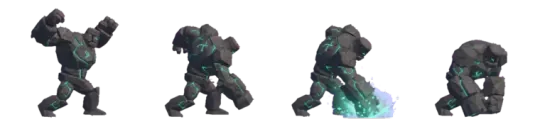



Make your own sprite sheet
Every sprite sheet question in one place: sheet vs atlas, grid vs frame strip, transparent PNG vs GIF, and free in-browser converters for GIF, image and video.
A sprite sheet is a single image that contains every frame of an animation laid out in a fixed grid or strip, so a renderer can sample one region per frame instead of loading dozens of files. If you have ever exported frames from a 3D animation and then had to figure out why the character jitters or the background turns black, the sprite sheet is usually where the problem lives.
This page covers the whole path: what a sheet actually is, how it differs from an atlas, when to use a grid versus a horizontal strip, which format to export, and how to convert GIF, image, and video sources into a usable sheet in the browser. The examples reference our own tools and worlds — Agent Sprite Forge, The Cyclops' Island, Mini World, and the 3D game builder — because that is the pipeline we ship and test.
What is a sprite sheet
A sprite sheet is a raster image where each animation frame occupies an equally sized cell in a regular grid. The sheet itself carries no semantic information about which cell is which frame; that mapping lives either in the file naming convention, a sidecar JSON index, or the engine's animation settings. The four things you must know to slice a sheet are: the cell width and height in pixels, the number of columns, the number of rows, and the origin (top-left for most engines, but some frameworks assume bottom-left).
If any of those four values is wrong, the failure is immediate and visible. A cell width of 32 instead of 33 shifts every frame one pixel to the right as you advance through the sheet, which reads as a slow horizontal drift. A wrong origin flips the animation vertically. A wrong frame count drops the last frame, so a walk cycle ends with a snap instead of a contact pose. These are not rendering bugs; they are metadata mismatches.
Anatomy of a sheet
Think of a sheet as a table. Columns and rows are implicit in the pixel dimensions: total width divided by cell width gives the column count, and total height divided by cell height gives the row count. A sheet that is 512 by 128 with 64 by 64 cells has 8 columns and 2 rows, so 16 frames. If you add one pixel of padding between cells, the math changes: 512 pixels wide with 64-pixel cells and 1-pixel padding fits 7 cells, not 8, because the padding eats 8 pixels. Padding and spacing must be accounted for before you write the slicing code.
Where the origin matters
Most WebGL and canvas pipelines place the origin at the top-left of the image, which matches the coordinate system used by image editing tools. Some game engines and older frameworks flip the Y axis and expect the origin at the bottom-left. If your sprite appears upside down, check the origin before resizing anything. The fix is usually a one-line transform or a regenerate with the opposite row order, not a full re-export.

Sprite sheet vs spritesheet vs sprite atlas
The spelling is not standardized. 'Sprite sheet' with a space is the common English form and what most documentation and tutorials use. 'Spritesheet' as one word appears in code identifiers, file names, and some engine APIs because spaces are awkward in those contexts. Search engines treat them as near-synonyms, so you will find the same technique under both spellings.
The real distinction is between a sheet and an atlas. A sprite sheet is a packed image without a mandatory index. A sprite atlas is the same packed image plus a machine-readable description of what is where — usually a JSON, XML, or binary file that names each region. That index is what lets a tool find the idle frame, the run frame, and the attack frame without you hardcoding pixel coordinates. If your frames are uniform and your loop is simple, a plain sheet is enough. If you have irregular regions or named states, you want an atlas.
- SheetA grid or strip of equally sized frames. No metadata required. Slicing is arithmetic.
- SpritesheetThe same artifact, written as one word. Common in code and asset filenames.
- AtlasPacked frames plus an index that maps names or IDs to rectangles. Enables named lookup instead of coordinate math.
Grid sheet vs horizontal frame strip
A grid sheet packs frames into rows and columns to keep the image close to square. That matters because texture memory and GPU sampling are friendlier to square or power-of-two dimensions on some hardware, and because a square sheet is easier to preview in an image editor. Grids are the default for engine-side slicing: you set the cell size and frame count, and the engine walks the grid row by row.
A horizontal frame strip places every frame in a single row. That is the layout shaders and flipbook textures expect, because the UV offset becomes a single multiply: frame index divided by frame count gives the X offset, and Y stays constant. If you hand a grid sheet to a shader that assumes a strip, the animation will sample across rows and wrap in ways you did not intend. If you hand a strip to an engine slicer that assumes a grid, it will either treat the strip as one very wide row or fail to find rows at all.
The failure mode is usually subtle at first: the animation plays, but the timing feels wrong or frames repeat out of order. Before you debug the animation logic, confirm the layout matches the consumer. In our 3D game builder, sprite-based characters use a grid because the engine handles the slicing; shader-driven effects like fire or water use a strip because the material samples it directly.
| Layout | Best for | What breaks if mismatched |
|---|---|---|
| Grid sheet | Engine slicing, uniform frames, compact dimensions | Shader samples across rows; animation wraps or skips |
| Horizontal strip | Shaders, flipbook textures, single-row UV math | Engine slicer sees one row or no rows; frames not found |
Which format to export
PNG is the safe default. It supports full alpha, it is lossless, and every engine and browser decodes it. For sprites with hard edges and flat colors, PNG compresses well. For photographic or heavily shaded sprites, WebP usually produces a smaller file at the same visual quality, and all current browsers support it. Use WebP when file size matters and you can verify the target runtime decodes it. GIF is a delivery format, not an authoring format: it supports only one-bit transparency, so every semi-transparent pixel becomes either fully opaque or fully transparent. If your source has soft edges, GIF will fringe them.
Include a JSON sidecar when your frames are not a simple uniform grid, when you need named states, or when the consumer expects an atlas. The sidecar is small and it removes the need to hardcode coordinates. If your frames are uniform and the animation is a single loop, you can skip it and let the engine compute the rectangles. Never export sprites as JPEG. JPEG is lossy and has no alpha channel, so transparency becomes either black or white, and the compression artifacts land exactly on the hard edges that define a sprite's silhouette. There is no setting that fixes this.
01
Export the frame sequence as individual PNGs with a consistent naming scheme.
02
If the frames are uniform, pack them into a grid and record cell width, cell height, columns, and rows.
03
If the frames are irregular or named, export a JSON sidecar that maps each region to a rectangle.
04
Choose PNG for maximum compatibility, WebP for smaller files when the runtime supports it.
05
Do not export as JPEG if any frame has transparency or hard edges.
All our converters
These are the conversion paths we ship. Each one runs in the browser, so you can drop a file in and get a sprite sheet out without installing anything. They cover the common sources: animated GIFs, still images, and video clips.
For animated GIFs, the converter unpacks each frame and packs it into a sheet or strip, preserving the frame delays in a sidecar if you request one. For still images, the converter crops and arranges a sequence of images you provide into a grid. For video, the converter samples frames at a chosen rate and writes them into a sheet; you control the sample interval and the cell size. If you are building a character for The Cyclops' Island or a prop for Mini World, start with the source format you have and pick the matching converter.
- GIF to sprite sheetUnpacks an animated GIF frame by frame and packs the frames into a grid or horizontal strip.
- Image to sprite sheetTakes a sequence of still images and arranges them into a uniform grid with a consistent cell size.
- Video to sprite sheetSamples frames from a video at a chosen interval and writes them into a sheet or strip.
- Agent Sprite ForgeOur sprite-focused tool for generating and packing character frames into sheets used by the 3D game builder.
Glossary
These are the terms that come up when you read sprite sheet documentation, engine settings, or shader code. The definitions are short on purpose.
- AtlasA packed image of regions plus a machine-readable index that maps names or IDs to rectangles.
- CellThe rectangle in a sheet that holds one frame. Its width and height are the cell size.
- Frame stripA sheet laid out as a single horizontal row of frames, used by shaders and flipbook textures.
- FlipbookA texture that is sampled one region at a time over time to produce an animation, typically from a frame strip.
- IndexThe sidecar data that names or numbers regions in an atlas. Without it, slicing is arithmetic.
- OriginThe corner of the image or cell that coordinates are measured from, usually top-left or bottom-left.
- PaddingExtra pixels between cells in a sheet, used to prevent texture bleeding. Padding changes how many cells fit.
- SpacingThe distance between cells, often used interchangeably with padding but sometimes counted separately.
Walk into the world it belongs to
A sprite is a character with nowhere to stand. The last step is the one nobody else offers: take the sheet you just built and put it in a world someone can walk around in — a small island, a planet, a rainy street corner. Every world on this site was made from one written description and published as a page you can play.
Back to the 3D Game Builder
All 31 finished 3D worlds, games and scenes live on one page — every one of them playable.
Browse the sprite sheet library
Every asset in this library is a transparent, game-ready PNG with a recorded prompt — Free sprite sheet resources and Sprite resource library, tagged by action, style and subject. Free to browse and download.