3D Asset Pipeline: From Text Prompt to Game-Ready GLB (Step by Step)


Make your own 3d asset pipeline
The whole path an AI-made 3D model travels: prompt, mesh, retopology, UV, texture, compressed GLB — and the checkpoints that stop a bad asset reaching your game.
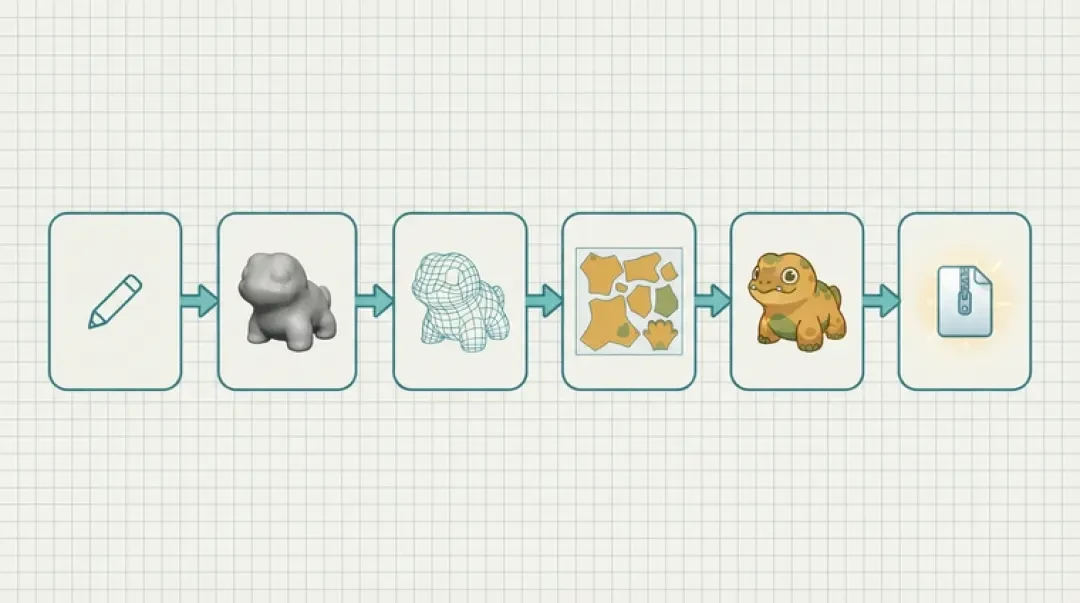
A 3D asset pipeline is the ordered path a model takes from a written description to a file your game can load: describe, generate the mesh, retopologise, unwrap and texture, inspect, export a compressed GLB. In Neta Studio that path ends in a GLB the 3D game builder hands to Three.js in the browser, so every stage has to produce something a browser can survive, not just something that looks right in a desktop viewport.
Most pipelines do not fail loudly. They fail quietly: a model that looked correct in the editor arrives in the level forty times too large, or a texture that was sharp on the torso is mush on the boots because the UV islands were packed at different densities. The checkpoints described below are the cheap ones — a wireframe pass, a non-manifold selection, a bounding-box measurement. Each takes under a minute and each catches a class of defect that costs an afternoon once the asset is inside the scene.
Quick Answer: What a 3D Asset Pipeline Is
A 3D asset pipeline is the ordered set of stages that turns a description into a file a game engine or a browser can load. There are six: describe the object in words, generate the mesh, retopologise when the topology is unusable, unwrap the UVs and texture the surface, inspect wireframe and normals and material slots, then export a compressed GLB. Nothing in that list is optional for a textured object, and each stage has one gate you can check before moving on.
The order matters because the stages are dependencies, not a checklist. Retopology rewrites vertex indices, so any UV map or baked texture produced before it is thrown away. Textures are authored against UVs, so unwrapping after texturing means redoing the texture. Compression is lossy and runs last, so the artefacts it introduces are indistinguishable from defects you should have caught three stages earlier. Running the stages out of order does not just cost time; it produces files that pass inspection and still break in the scene.
Treat each stage as a producer with a contract. Stage 2 must hand Stage 3 a single mesh in metres with a known triangle count. Stage 4 must hand Stage 5 a model whose islands share one texture set. Stage 6 must hand the runtime a file under a size budget with materials that map one-to-one onto what the renderer expects. When an asset misbehaves later, the contract that was never written is usually the one that was broken.
The Six Stations at a Glance
Each station has one output and one characteristic failure. The failure column is the useful one — it tells you what the gate at the end of each stage has to check before you allow the asset to move on.
| Stage | What it produces | Most common failure |
|---|---|---|
| 1. Describe | A prompt that fixes silhouette, material, scale, pose and style | Vague prompt returns a fused multi-part object at an arbitrary size |
| 2. Generate mesh | A dense triangle mesh, typically tens of thousands of triangles | Open shell, interior faces, no usable silhouette from the side |
| 3. Retopologise | A clean mesh at the triangle budget you chose | Retopo performed after unwrapping, discarding the UVs |
| 4. Unwrap and texture | UV islands packed into 0–1 plus an albedo/roughness set | Uneven texel density, seams cutting across visible curvature |
| 5. Inspect | Confirmed normals, material slots and wireframe | Flipped normals and empty material slots discovered after export |
| 6. Export GLB | A compressed .glb with textures embedded | Geometry compression applied to a skinned mesh that then loses weights |
Stage 1: Describe the Object
A generation prompt is a specification, not a wish. Five fields do the work: silhouette, material, scale, pose and style. Silhouette words decide the outline the mesh is built around. Material words decide albedo and roughness. Scale words anchor proportion — write 1.8 m tall rather than tall, because the generator has no other way to know whether it is making a table ornament or a building. Pose words matter for anything that will be rigged: a neutral A-pose or straight stance generates a mesh a skeleton can be fitted to, while an action pose bakes the limbs into a shape you cannot easily re-rig.
Two more clauses are worth adding every time. State the part count — single object, or separate body and base — because fused geometry is the most common reason a generated asset cannot be animated or given per-part materials. And state what to leave out: no base plinth, no background, no ground plane. Generators fill empty space with plausible-looking geometry, and every extra surface you did not ask for is a surface you have to delete later.
- Weak prompt"a stone lantern" — no scale, no material, no pose, no part count. The generator picks a style and a size on your behalf, and you receive a 9 m tall fantasy lantern with a glowing crystal in the firebox and a plinth fused to the base that you will spend twenty minutes removing.
- Strong prompt"single stone lantern, 1.8 m tall, hexagonal cap, weathered grey granite with lichen in the seams, straight vertical stance, empty firebox, muted realistic style, one object, no plinth, centred on origin" — every clause maps to one decision you have taken away from the generator. Scale is fixed, material is fixed, the pose is neutral, part count is one.
Stage 2: Generate the Mesh
Mesh generation is either text-to-mesh or image-to-mesh. Image input gives you tighter control over silhouette because you can supply a reference with the proportions you already want; text input is faster for objects where the shape is conventional. Either way, what comes back is raw material, not a shipping asset. A generated mesh is typically far denser than it needs to be, with irregular triangle flow and no thought given to how the surface will be cut for UVs.
Check three things before you do anything else: whether the mesh is closed, whether the scale is sane, and whether the triangle count is one you can afford in the scene you are building. If the answer to the third is no and the object never deforms, a Decimate modifier in Collapse mode with the silhouette preserved is a legitimate answer — it is not a substitute for retopology, but for a static prop it is often the correct trade.
01
Watertight check: in Blender, Edit Mode → Select All by Trait → Non Manifold. The expected count is zero. Holes under a cap or along a limb mean the generator produced an open shell; it will shadow incorrectly and cannot be booleaned, solidified or 3D printed.
02
Duplicate and interior geometry: Merge by Distance at 0.0001 m, then re-read the triangle count. Interior faces survive generation surprisingly often and appear as dark patches under a normal render.
03
Scale: read the bounding box in the N panel, not the viewport. A prop intended to be 0.4 m that measures 4 m will be scaled down by whoever places it, and its collision volume will be wrong by the same factor.
04
Triangle budget: roughly 500–3,000 triangles for a prop, 5,000–15,000 for a hero object, under 500 for background set dressing. A 200,000-triangle raw mesh is normal for a generator; it is not normal for a shipping asset.
Stage 3: Retopologise When the Mesh Is Messy
Clean quad topology matters when the surface has to do work after export. That means anything that deforms — characters, cloth, flags, foliage — because edge loops determine whether an elbow bends or collapses. It also matters when you plan to subdivide, when you plan to bake high-poly detail into a normal map (which needs evenly distributed quads and a stable UV layout), when someone else will edit the silhouette later, and when you need predictable lower-detail versions of the same object.
It does not matter for a static prop seen at distance, a hard-surface object whose silhouette is already correct, or anything that will end up under about a thousand triangles. In those cases a decimated mesh with correct normals and a clean outline is the right answer, and spending an hour on quad flow is an hour you will never recover in the render.
The order is fixed: remesh or decimate first, then unwrap. Blender's UV unwrap guide assumes the mesh is final when you start cutting seams, and that assumption is the whole point — retopology changes vertex indices and edge flow, so a UV map made before it no longer exists in any meaningful sense, and every texture painted against it is misaligned. Do the remesh, apply it, then follow the unwrap documentation. A Voxel Remesh at 0.01–0.02 m on a one-metre object followed by QuadriFlow to a target face count is the standard path; Decimate Collapse is the fast path for static geometry.
Stage 4: Unwrap and Texture
Unwrapping cuts the surface into islands, flattens each one with as little distortion as possible, and packs them into the 0–1 UV square. Smart UV Project gives a tolerable baseline for hard-surface objects in seconds. Characters and anything with visible curvature deserve hand-placed seams: down the inside of a limb, along the back, behind the ear — never across the middle of a form the camera will see from the front.
Texel density is the number that decides whether the model looks consistent. It is texture resolution per world unit: a 1024×1024 map spread over one square metre gives about 1,024 pixels per metre. If the head of your character receives 1,024 px/m and the boots receive 300 px/m, the boots are visibly softer in the same frame and no amount of sharpening fixes it. Budget the density once, then scale every island to match it, and keep islands within roughly 10–20% of each other.
Packing needs margin, not just efficiency. Leave 4 pixels of padding at 1024 and 8 at 2048 so mipmapping and bilinear filtering do not pull neighbouring islands into a seam. Keep UVs strictly inside 0–1 for a web build: UDIM tiles are supported by some exporters and not by most browser loaders, and a second texture set costs a second draw call. If part of the model is never visible, spend its UV space on the parts that are rather than deleting the faces — missing faces are harder to diagnose later than a slightly lower-density hidden area.
Stage 5: Inspect Before Export
Inspection is three separate passes, each looking for a specific class of defect. Do them in this order, because a normals problem hides a material problem and a material problem hides a wireframe problem.
Wireframe
Switch to wireframe and read the triangle distribution. You are looking for long thin slivers, which shade badly and deform worse; for n-gons, which the glTF exporter will triangulate on its own and occasionally in a direction you did not choose; and for density in the wrong place — a flat wall carrying 6,000 triangles while the curved cap carries 200. Density should follow curvature and deformation, not the order in which the generator emitted faces.
Normals
Recalculate outside, then look at the model under a single directional light with backface culling on. Flipped faces read as black patches or disappear entirely. Check hard edges too: an auto-smooth angle around 30° suits hard-surface objects and 60° suits organic ones, and custom split normals are the first thing to be silently mangled by a format conversion. If the model is black only after export, re-export without geometry compression to see whether the compressor or the mesh is at fault.
Material slots
Count the slots. Generated meshes routinely arrive with six, two of them empty and two more pointing at duplicate copies of the same image. Each material is a draw call, so consolidate to one material with one texture where the object allows it, delete empty slots, and confirm the alpha mode: BLEND forces sorting and costs fill rate, MASK is cheaper and usually correct for foliage and railings. Check the double-sided flag as well — leaving it on doubles the shaded surface for no visual gain.
Stage 6: Export a Compressed GLB
For a browser build, set a size budget before you export rather than after. A single prop should land under about 1 MB, a hero character between 2 and 4 MB, and a whole scene under roughly 15–20 MB if you expect it to load on a mid-range laptop without a visible stall. Textures dominate that budget: 512 px for background objects, 1024 px for props, 2048 px only for something the camera gets close to.
Compression does two different jobs and they are worth separating. Geometry compression — Draco or Meshopt — quantises vertex positions, normals and UVs to a fixed number of bits and reorders the buffer. Draco usually produces the smaller file; Meshopt decodes faster, which matters on mobile. Both are lossy at the precision level and both can disturb skinning weights and morph targets if the mesh was not clean to begin with. Texture compression via KTX2/Basis keeps the image compressed in GPU memory instead of decoding to raw RGBA, at the cost of an extension your loader has to support — glTF's core spec only guarantees PNG and JPEG.
Always open the exported file in a GLB viewer or import it into the 3D game builder before you call it done. The exporter is where normals flip, material slots collapse into one, and scale drifts because a transform was applied to the parent and not the mesh. Testing in the tool that produced the asset proves nothing; testing in the loader you will actually ship with proves everything.
Where Pipelines Break and How to Spot It
The symptoms below cover most of what goes wrong. Notice that four of the six are visible in a single inspection pass, and none of them require you to open the source file if you test the exported GLB properly.
Why 3D asset pipeline failures cluster at two stages
Generation and export produce most of the defects, for opposite reasons. Generation is unconstrained — the model has not been told what it must be, so it invents scale, part count and interior geometry. Export is destructive — it is the first point where the data is quantised, reordered and packed into a single file, so every latent problem in the mesh becomes visible at once. Stages 3 to 5 exist to move defects out of the destructive end of the chain and into a place where you can still see them clearly.
| Symptom | Cause | Fix |
|---|---|---|
| Model renders pure black or invisible in the scene | Flipped or missing vertex normals, sometimes introduced at export | Recalculate outside before exporting; re-export without compression to isolate the cause |
| Object is far too large or too small in the level | Unit mismatch — authored in centimetres, expected in metres, or scale never applied | Measure the bounding box, apply scale, set the scene unit to metres before export |
| Texture is sharp on the torso and blurred on the boots | Uneven texel density across UV islands | Re-pack by world-space density and bring islands within 20% of each other |
| GLB is tens of megabytes and the tab stalls | Uncompressed geometry plus 4096 px PNG textures | Drop to 1024/2048, apply Draco or Meshopt, remove unused materials and hidden faces |
| Mesh tears at the elbow when animated | Retopology done after rigging, or unwelded vertices along a seam | Retopologise before rigging; merge by distance and re-check skin weights |
| Bright lines or glow along UV seams | No padding at island edges, so mipmaps sample the neighbouring island | Add 4–8 px margin at 1024, bake with a margin, keep islands inside 0–1 |
Walk into the world it belongs to
A sprite is a character with nowhere to stand. The last step is the one nobody else offers: take the sheet you just built and put it in a world someone can walk around in — a small island, a planet, a rainy street corner. Every world on this site was made from one written description and published as a page you can play.
FAQ
What is a 3D asset pipeline? +
The ordered set of stages that turns a description into a loadable file: describe, generate the mesh, retopologise, unwrap and texture, inspect, export a compressed GLB. The order is fixed by dependencies — retopology destroys UVs, textures depend on UVs, and compression hides defects introduced earlier.
Why GLB instead of FBX or OBJ? +
GLB is a single binary container defined by the glTF specification: geometry, materials, textures and skinning in one file that Three.js and most engines read without a converter. OBJ carries no material or animation data, and FBX needs a proprietary SDK. For a browser build, GLB is the only format that does not require a second tool in the chain.
Do I need retopology? +
Only when the surface has to work after export: deformation, subdivision, or baking high-poly detail into a normal map. A static prop whose silhouette is correct can ship decimated. Retopologise before unwrapping and before rigging, never after.
How many triangles is too many? +
Budget by screen coverage and instance count rather than a single number. Roughly 500–3,000 triangles suits a prop, 5,000–15,000 a hero object, and under 500 background set dressing. An object that fills a small part of the screen and appears fifty times should be budgeted in pixels, not in triangles.
Can I skip UV unwrapping? +
Only if the object uses flat colours or a procedural shader that needs no UVs — and that shader will not survive export, because glTF carries baked PBR textures, not node graphs. Anything with a painted or baked albedo needs a real UV layout, so unwrap before you texture.
Where should I test a GLB? +
In the loader you will actually ship with. Import it into the 3D game builder, or open it in a standalone glTF viewer, and check four things: scale against a known reference, normals under a single light, that the material and alpha mode survived, and the file size over the network with the cache disabled.
Back to the 3D Game Builder
All 31 finished 3D worlds, games and scenes live on one page — every one of them playable.