AI 3D Printing: What Generated Models Need Before They Print

Make your own ai 3d printing
What AI-generated 3D models can and cannot print well: wall thickness, overhangs, scale, watertight meshes, and how to prepare a generated GLB for a desktop printer.
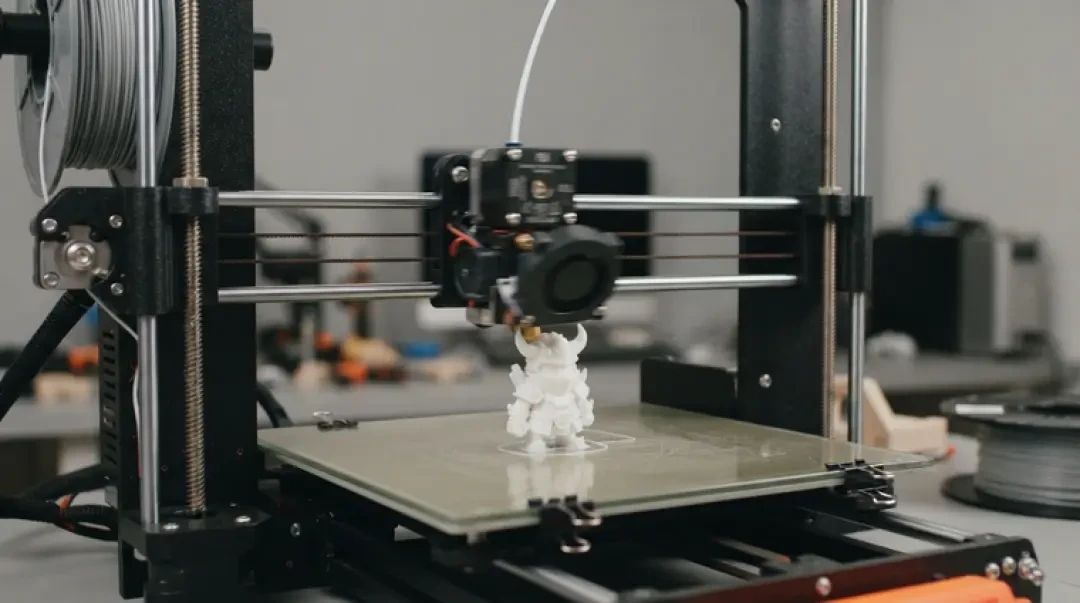
AI 3D printing means taking a model produced by a text-to-3D or image-to-3D generator and running it through a normal slicer and a normal desktop printer. The generator solves the shape problem. It does not solve the manufacturing problem. A generated GLB is a render asset first, and a printable solid second — if it is a solid at all.
This page covers what actually breaks between the two: non-watertight meshes, walls thinner than the nozzle, overhangs beyond what the material tolerates, scale that never got defined, and conversions that quietly drop data. You can build and preview the source model in Neta Studio's 3D game builder or with assets like Agent Sprite Forge and The Cyclops' Island, but the printer only sees the exported file. That file is where the work is.
Quick Answer: Can You 3D Print an AI-Generated Model?
Yes, for many shapes, with preparation. The silhouette usually survives the trip to the printer. Thin parts, hidden internals and non-closed meshes usually do not. If the generated model has limbs, ribs, hair strands or a handle under roughly 1 mm thick, expect to thicken or drop them. If it has an open bottom or a self-intersecting shell, the slicer will either reject it or fill it in ways you did not intend.
The reliable path is: generate, inspect, repair the mesh, set a real scale in millimetres, check wall thickness against your nozzle, orient for overhangs, export STL or 3MF, and confirm in the slicer preview. Skip any one of those and you will usually find out on the print bed. The rest of this page walks through each step with the numbers that matter.
- Survives wellOverall silhouette, chunky bodies, single-piece props, smooth organic blobs, statues with thick limbs and no thin protrusions.
- Usually failsHair strands, fingers, weapon tips, open-back shells, intersecting sub-meshes, hollow interiors that were never sealed, and anything under 1 mm in the smallest dimension.
- Needs a decisionScale, orientation, support strategy and whether to retopologise before slicing. These are not model quality problems; they are print setup problems.
What Generators Get Right and Wrong
Generators are trained to look correct from a camera, not to be manufacturable. That distinction explains almost every failure. A mesh can render beautifully with double-sided shading, intersecting shells and zero-thickness planes. A slicer cannot use any of that. It needs a closed volume with consistent normals so it can decide what is inside the part and what is air.
On the good side, current generators are strong at overall form: proportions, pose, large masses, surface flow. A generated character bust or prop usually has a readable silhouette and reasonable curvature. On the bad side, they are weak at engineering detail. Ribs come out uneven. Flat bases are not flat. Symmetric features drift. Internal cavities are implied by shading rather than modeled as closed voids. Small features collapse into noise.
Treat the generated mesh as clay, not as a part. The generator gives you the shape you would have blocked out by hand in an afternoon. The manufacturing work — flattening the base, thickening the thin parts, closing the shell, deciding where supports go — is still yours, and it is usually a small fraction of the total effort if you do it before export.
Specific things to expect
Thin ribs and fins will be thinner than they look in the viewport, because the viewport has no nozzle. Flat bases will be a few tenths of a millimetre off flat, which matters if the part must sit flush. Symmetric features such as eyes, ears or fasteners will be slightly asymmetric, which is only visible after printing. Self-intersections between sub-meshes are common and produce ambiguous inside/outside regions that repair tools must resolve before the slicer will accept the file.
Watertight, Manifold, Printable
A watertight mesh is a closed surface with no boundary edges: every edge is shared by exactly two triangles, and the surface divides space cleanly into inside and outside. A manifold mesh goes further — no edge is shared by more than two faces, and no vertex is pinched between disconnected regions. Slicers need both. When the surface is open, the slicer cannot tell which side is solid, so it either throws an error or guesses, and the guess is usually wrong.
Run three checks before anything else. First, look for boundary edges in your mesh editor; zero is the target. Second, check for non-manifold edges and self-intersections. Third, check the normals are consistently outward. Most mesh tools expose these as selection modes or analysis panels. If a repair pass changes the silhouette, stop and fix the source rather than accepting the repair.
Repair tools are good at closing small holes and removing duplicate vertices. They are not good at inventing missing geometry. A large open boundary, such as a shell with no back, usually needs a deliberate cap modeled or a boolean union with a solid block, not a hole-fill operation.
| Check | What it means | Symptom if it fails |
|---|---|---|
| Boundary edges | Edges used by only one triangle; the surface has a hole | Slicer reports a non-manifold or open mesh and refuses to slice, or fills the hole with a flat cap in the wrong place |
| Non-manifold edges | An edge shared by three or more faces, or two faces meeting at a pinch point | Slicer produces stray shells, zero-thickness walls, or slices the same region twice |
| Normal consistency | All faces point outward from the solid | Inside-out regions render as hollow, and the slicer treats the interior as air; the part comes out with missing walls or a mirrored shell |
Wall Thickness and Overhangs
Wall thickness has to be at least one nozzle width to print as a wall, and realistically two perimeters for anything that will be handled. On a 0.4 mm nozzle, that means 0.8 mm is the floor for a structural wall and 1.2 mm is a safer default for a generated part whose surfaces are not perfectly clean. On a resin printer the floor is lower — around 0.6 mm for a stable wall at typical layer heights — but thin walls still warp and chip. Treat these as starting points, not rules. Check them against the nozzle, layer height and material you are actually using.
Overhangs are surfaces that lean out over air. FDM printers handle roughly 45 degrees from vertical without support; beyond that, the extruded plastic sags. The exact limit depends on cooling, layer height and material — PLA tolerates more than PETG, and a well-cooled 0.2 mm layer tolerates more than a 0.3 mm layer. Resin printers have a different problem: overhangs are fine, but islands and suction forces are not, and supports are still required to hold the part and peel it off the film.
The practical consequence is that overhang angle drives support use, and support use drives surface finish. Every supported face will need cleanup. If the face you care about is on the underside, reorient the part before generating supports, because no amount of post-processing fully hides support scars on a detailed surface.
- FDM, 0.4 mm nozzleMinimum wall 0.8 mm, preferred 1.2 mm. Overhangs above about 45 degrees need support. Bridging is limited to short spans.
- Resin, typical layer heightMinimum stable wall around 0.6 mm. Overhangs are printable but need supports for islands and peel forces. Drain holes required on hollowed parts.
- BothGenerated meshes rarely have clean vertical walls; measure the thinnest feature, not the average, and thicken before export.
Scale and Orientation
A generated GLB usually has no meaningful unit. It might be 1 unit tall or 1000 units tall, and the slicer will read whatever number it finds as millimetres. Set scale explicitly from a real dimension: the height of the finished part, the diameter of the base, the length of the longest axis. Then check the other axes follow the model's real proportions. If the model is a character 180 mm tall, the head should come out around 22 to 25 mm, not 60.
Orientation is where most of the print quality is decided. Lay the largest flat face on the bed when you can, because it gives adhesion and removes the need for supports under that face. Angle tall thin parts so the cross-section grows gradually rather than starting from a small footprint. Rotate the model so overhangs land on faces you do not care about. The face, the logo and any mating surface should point away from the bed and away from support contact.
A generated model often has no flat base at all. Cut one. A boolean difference with a large box at the lowest intended plane gives you a true flat surface, and it is more reliable than tilting and hoping the first layer sticks to a curved patch.
From GLB to a Printable File
Slicers read mesh formats: STL, 3MF, OBJ and, increasingly, GLB directly. Converting a GLB to STL is safe for geometry — STL stores triangles and nothing else — but it drops everything that is not geometry: vertex colours, material slots, texture references, animation, scene hierarchy and most metadata. If the colour mattered for the print, it is gone at this step. 3MF is the better container when you need to keep units, multiple objects and per-object settings, because it carries a proper unit declaration and object metadata.
After conversion, reopen the file and check three things: the triangle count matches the source, the bounding box is the size you expect in millimetres, and the mesh is still closed. Conversion rarely breaks watertightness, but it will faithfully carry any defect that was already there. Run the watertight checks again on the converted file rather than assuming the source was clean.
If you are printing multicolour on a machine that supports it, 3MF is effectively required to carry the material assignments through. With STL you get one body and one colour. Decide which output you need before you slice, not after.
When to Retopologise First
A generated mesh can be watertight and dimensionally correct and still slice badly. Generators typically output dense, uneven triangle fields — hundreds of thousands of triangles concentrated in smooth areas and sparse in curved detail areas. Slicers handle this by intersecting every triangle with every layer plane, so a dense mesh slows slicing and produces noisy toolpaths on near-flat surfaces. Very small triangles also create rounding artifacts at layer boundaries.
Retopologising first is the right call when the mesh is above roughly half a million triangles, when surfaces are visibly faceted or noisy, when the model has many intersecting sub-meshes, or when the slicer preview shows toolpath jitter you cannot attribute to settings. Decimating first is faster and often enough; quad remeshing is better when you plan to keep editing the model.
Do the stages in order: repair watertightness, then decimate or retopologise, then set scale, then cut the base, then orient. Doing them out of order means repeating the earlier work. The pipeline guide covers that sequence in more detail and is worth reading before you start a large conversion.
Printer Types: FDM, Resin and Multi-Colour
FDM prints by extruding molten filament, so it cares about wall thickness, overhang angle and bed adhesion. A generated model for FDM needs walls of at least 0.8 mm on a 0.4 mm nozzle, overhangs under about 45 degrees or supported, and a flat base to sit on. It is forgiving of small surface noise and unforgiving of thin protrusions.
Resin printers cure liquid photopolymer layer by layer, so they care about islands, suction forces and drain paths. A generated model for resin needs to be hollowed with drain holes if it is large, supported from the build plate up, and free of trapped volumes. Fine detail holds much better than on FDM, so thin features survive at sizes FDM would lose — but they still chip, and they still need supports.
Multi-colour FDM adds material assignment to the file. A generated GLB with vertex colours or texture maps needs those colours converted into per-face material regions before slicing, and the output must be 3MF or the printer's native project format. Painted colour in the source does not automatically become extruder assignment. Check the slicer's colour preview before committing filament.
Checklist Before You Hit Print
01
Watertight: confirm zero boundary edges, no non-manifold edges and outward normals on the converted file.
02
Scale: set the finished size in millimetres from a real dimension and verify all axes follow the model's proportions.
03
Wall thickness: measure the thinnest feature and raise it to at least 0.8 mm for FDM or 0.6 mm for resin.
04
Overhangs: identify surfaces beyond about 45 degrees from vertical and decide support or reorientation.
05
Orientation: put the largest flat face on the bed, keep the detail you care about away from supports, cut a flat base if there is none.
06
File format: export STL for single-material geometry, 3MF when you need units, multiple objects or colour assignments.
07
Slicer preview: step through every layer, check for missing walls, floating shells, unsupported islands and support contact on visible faces.
Walk into the world it belongs to
A sprite is a character with nowhere to stand. The last step is the one nobody else offers: take the sheet you just built and put it in a world someone can walk around in — a small island, a planet, a rainy street corner. Every world on this site was made from one written description and published as a page you can play.
FAQ
Can AI models be 3D printed? +
Yes, when the generated mesh is watertight, scaled in millimetres and has walls thick enough for the nozzle. The shape is usually fine; the printability is what needs work.
What is a watertight mesh? +
A closed surface where every edge is shared by exactly two triangles, so the mesh divides space cleanly into inside and outside. Slicers require this to decide which volume to fill.
What wall thickness do I need? +
On a 0.4 mm FDM nozzle, at least 0.8 mm and preferably 1.2 mm for anything handled. On resin, around 0.6 mm is the practical floor. Check against the nozzle, layer height and material you are using.
Do I need supports? +
For FDM, any overhang beyond roughly 45 degrees from vertical needs support, and the support will leave marks. For resin, supports are needed for islands and peel forces regardless of overhang angle.
STL or 3MF? +
STL if you only need geometry and one material. 3MF if you need units, multiple objects, per-object settings or colour assignments, because STL carries none of those.
Which generator should I start with? +
Start with one whose output you can inspect and export as a clean GLB, and test with a simple prop before a detailed character. The 3D game builder in Neta Studio, Agent Sprite Forge and The Cyclops' Island are useful for learning the export and repair loop on shapes that are easy to check.
Back to the 3D Game Builder
All 31 finished 3D worlds, games and scenes live on one page — every one of them playable.